Blog
The Universal LED Light Remote App: One App to Run Your Whole Light Show

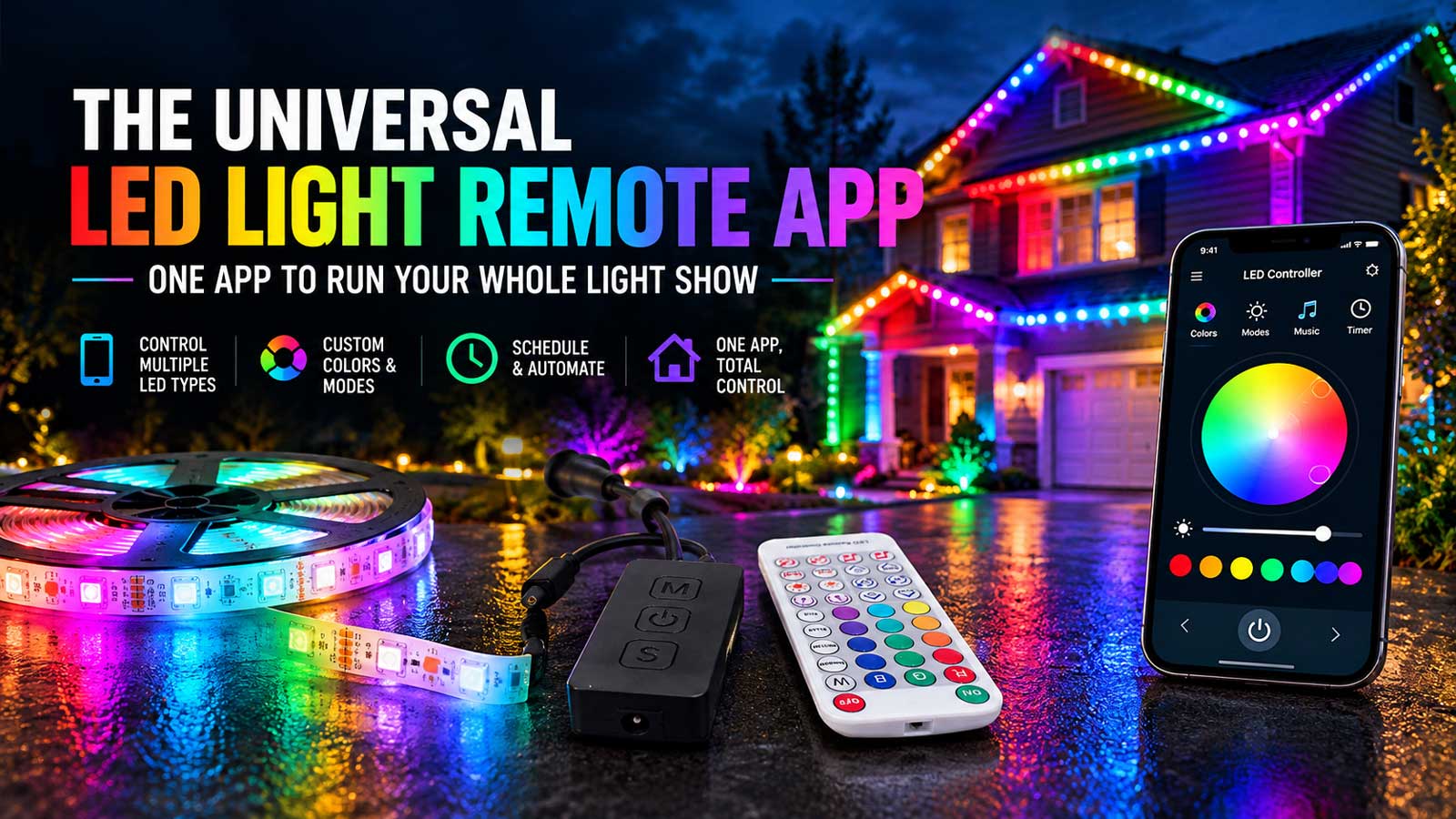
If you’re looking for a universal LED light remote app that runs every light you own, it doesn’t exist. What does exist is better for a pixel show: one control point you can reach from your phone.
Is there a universal LED light remote app?
No app controls every LED light. A universal LED light remote app either copies IR remote codes, which needs a phone with an IR blaster, or connects to a named list of Wi-Fi and Bluetooth brands. A pixel show is different. Its player, like FPP, is already the one remote, and your phone can open it.
Everyday LED strips: what a universal app can and can’t do
Most strip kits ship with a small IR remote, often 24 or 44 keys. An IR app copies those codes, but only if your phone has an IR blaster. iPhones don’t have one, so IR apps need a plug-in add-on there.
Codes also change between remote families. A 24-key and a 44-key remote send different codes. That’s why replacement remotes say they only match the same model. Some strips use an RF remote instead, and no IR app can reach those.
Wi-Fi and Bluetooth apps that call themselves universal work with the brands and controller chips on their list. If your strip’s controller isn’t listed, it won’t connect. This is the catch behind most apps to control LED lights: the word universal describes the ambition, not the hardware.
A physical universal LED remote control plays by the same rules. A basic one covers a set number of code families. A learning remote copies codes from a working remote, so it won’t help once the original is gone.
So what should you check? Look at the strip’s controller box for a brand or app name, and try that maker’s app first. Count the keys on the old remote before you buy a universal light remote, and match it.
If your lights are pixels running a show, you’re asking a different question, and the answer’s better.
Your show already has one remote: the player
A pixel show doesn’t need a universal LED light remote app. It already has one control point, and that’s the player.
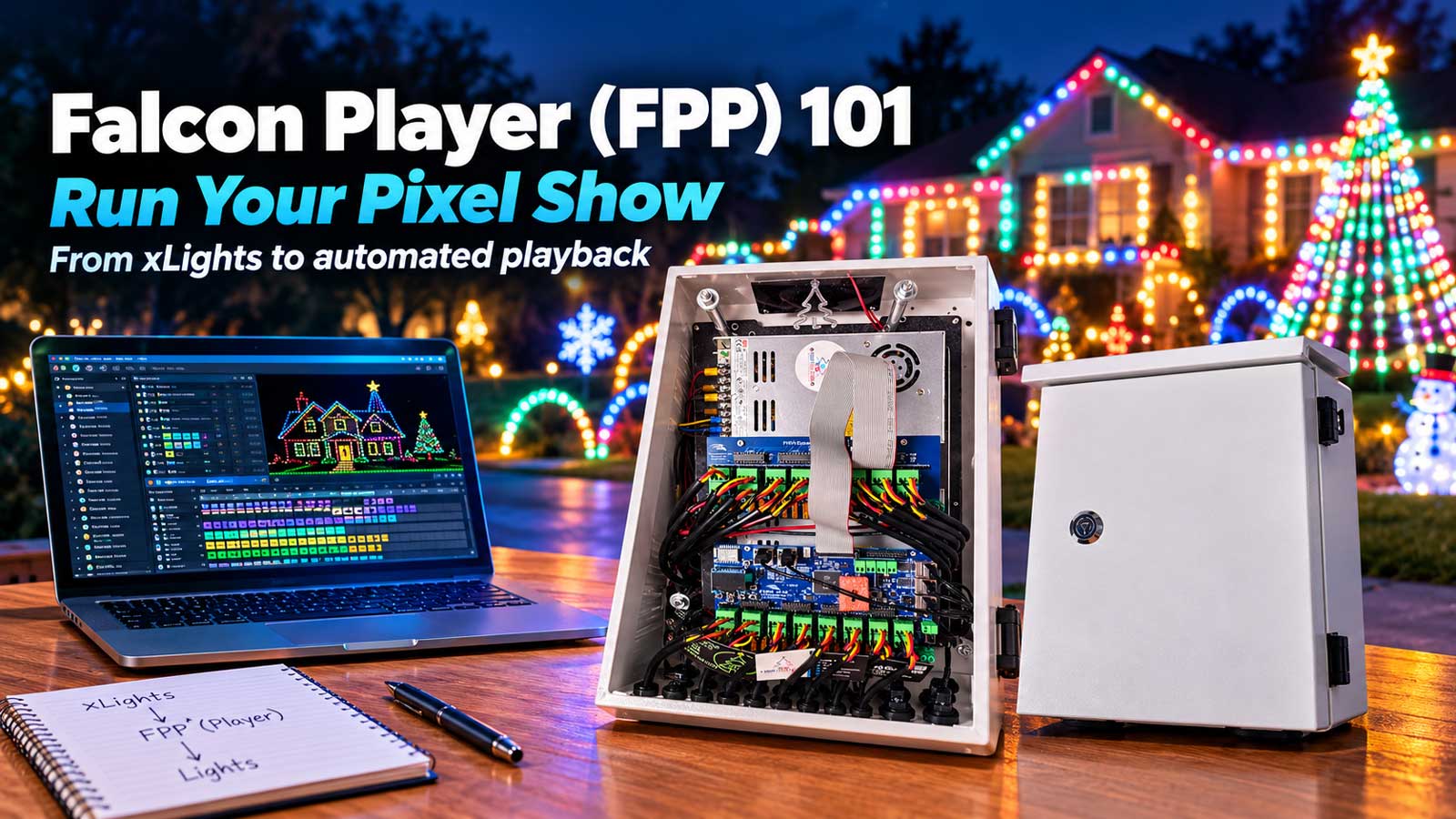
Here’s how the pieces fit. You build sequences and the layout in xLights on a computer. You copy the finished sequences to FPP (Falcon Player), which runs on a small board like a Raspberry Pi. FPP plays the show and sends pixel data over your network to the controllers. The controllers drive the pixels.
That data moves in a lighting protocol, a shared language for network gear. The common ones are E1.31 (also called sACN), ArtNet, and DDP. E1.31 carries DMX data over Ethernet or Wi-Fi. FPP speaks E1.31, DDP, and more to controllers from many makers.
So your phone never talks to a prop. It opens a window into the player or a controller. Start a playlist on FPP and every controller down the line follows.
Consumer apps can’t join this. IR and Bluetooth strip apps don’t speak E1.31, ArtNet, or DDP, so no consumer universal LED light remote app will run your mega tree.
What you can do from your phone
| Task from a phone | FPP web page | FPPMon app | WLED app or web page |
|---|---|---|---|
| Start or stop the show | Yes, player controls for the playlist | Yes, from the instance list | Presets and playlists only |
| Schedule | Yes, including sunrise and sunset times | — | — |
| Brightness | — | — | Yes |
| Check status | Yes | Yes, every FPP on one screen, plus WLED and Falcon | Yes |
| Edit sequences | No | No | No |
A blank cell means the maker doesn’t document it, not that it’s impossible. Test your own gear before you rely on it.
FPPMon comes closest to a universal LED light remote app for a pixel show. Kulp Lights makes it. It lists every FPP on your network on one screen, starts and stops playlists from that list, and can watch WLED and Falcon controllers too. On iPhone, you can start a playlist or preset from Siri Shortcuts. All of that comes from the developer’s own release notes. It runs on iPhone, iPad, Mac, Android, Windows, and Linux, with a free tier for a small setup and paid plans above it.
Choosing an LED light controller app for a show
Once you know which layer you’re controlling, picking an LED light controller app gets simple. Three things decide it.
What it talks to. An app that reaches your player is worth more than one with prettier effects. If it can’t see FPP or your controllers on the network, nothing else about it matters.
What it does when the show is running. Most LED lights applications are built for setting a mood, not for running a sequence. On show nights you want start, stop, status, and a test pattern. That’s the whole job.
Whether it needs the internet. The best LED light app for a display is one that works on your local show network with no account and no cloud. Fewer moving parts on the night that counts.
Judge an app by those three and the shortlist gets very short, very fast.
Reaching FPP from your phone
FPP has a full web page, and your phone’s browser opens it like any website. Connect the phone to the same network as the player, then type the player’s IP address into the browser. You’ll see the player controls for your playlist. The scheduler lives there too, and it can time the show to your local sunset.
If you’d rather tap an app than a web page, FPPMon from the section above talks to the same player.
Setup steps and settings live in our Falcon Player (FPP) 101 guide.
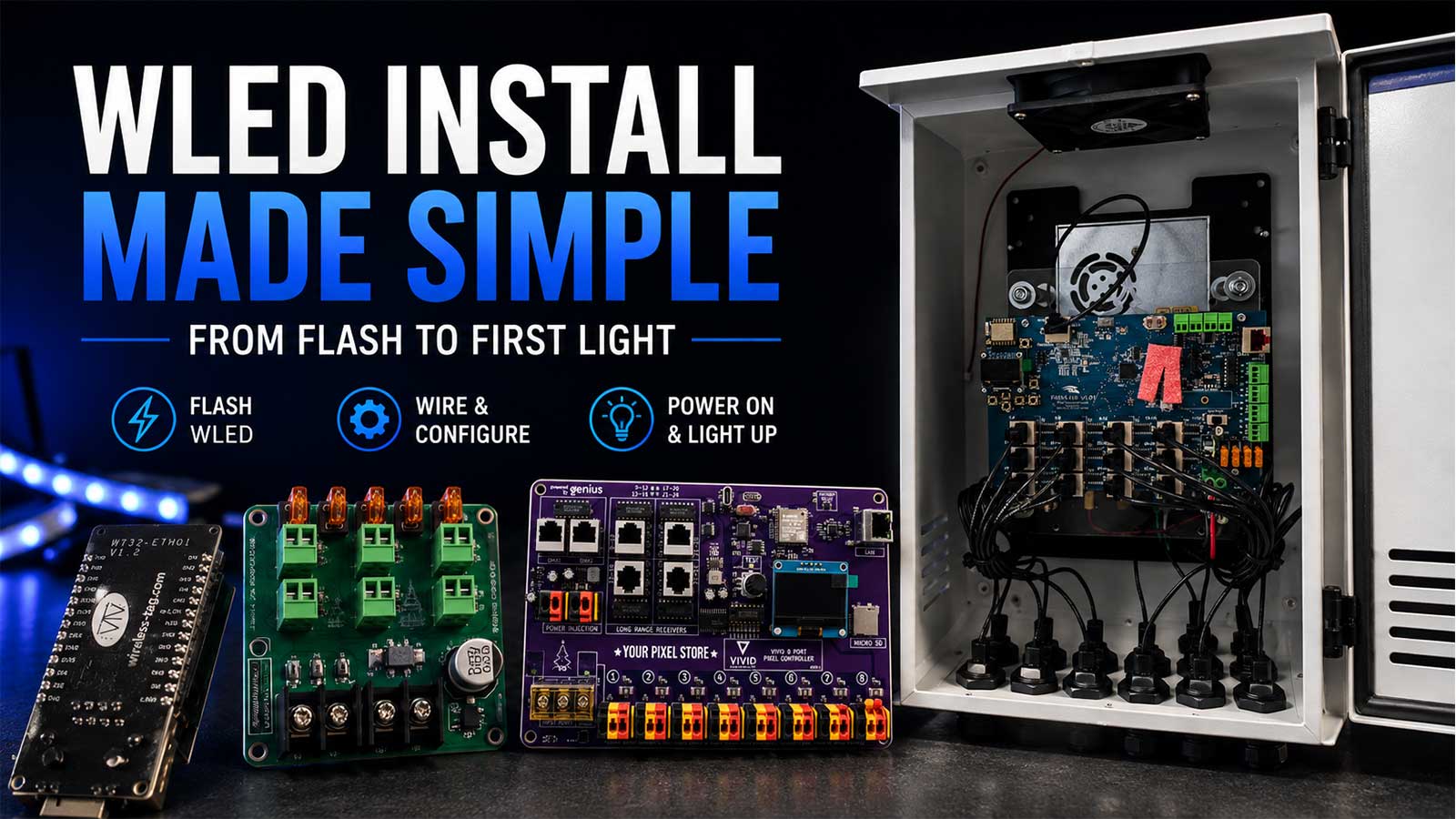
WLED props: the WLED app as a remote
The official WLED app finds WLED devices on your network on its own. Your phone needs to be on the same Wi-Fi as the props. From there you can change brightness, colors, and presets.
One catch in mixed shows. When FPP sends DDP data to a WLED prop, the prop can stay in live mode after the sequence ends, so its own presets don’t come back. That’s an open, user-reported FPP issue rather than a documented limit.
For picking WLED hardware, see our guide to choosing WLED controllers.
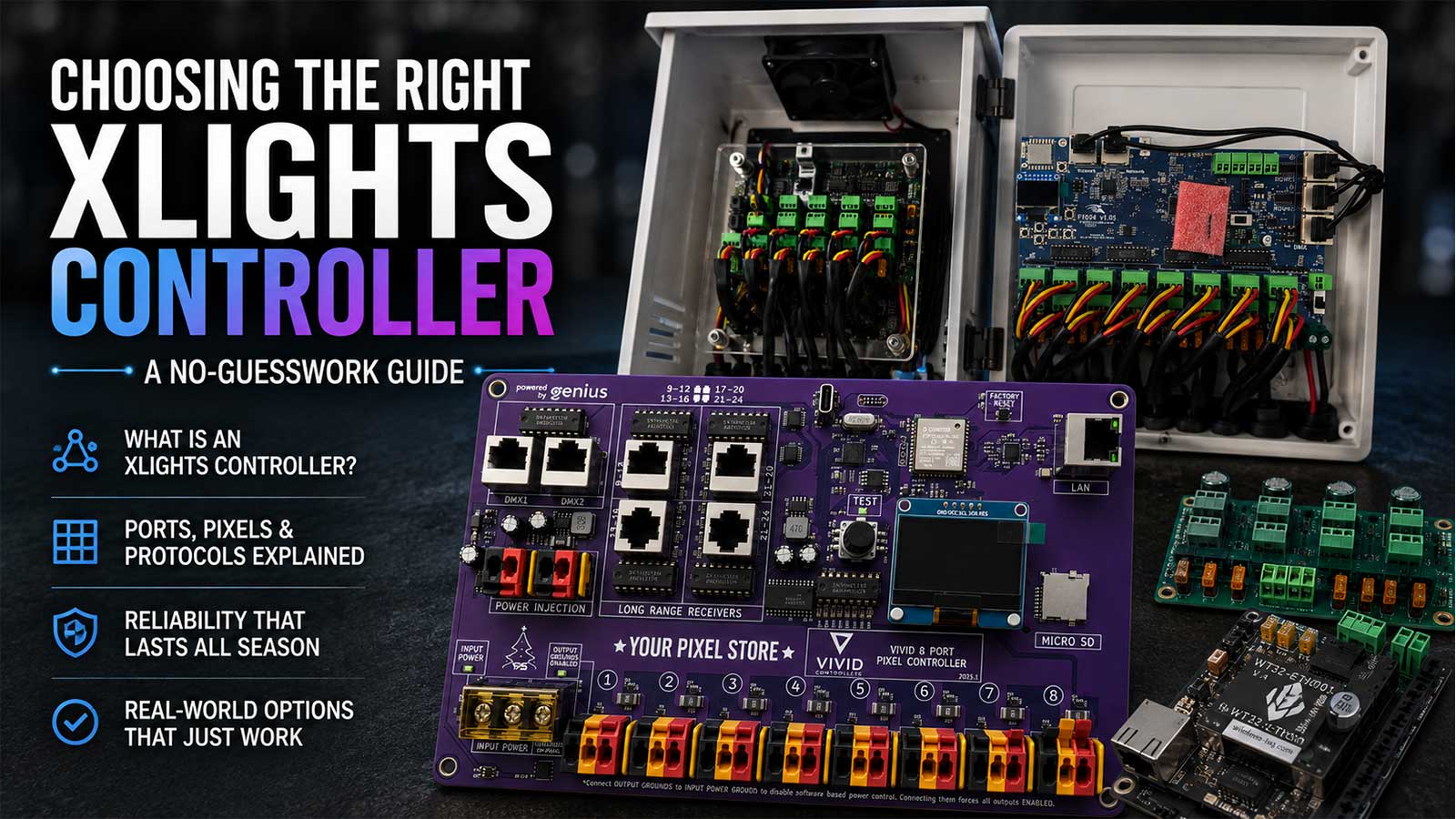
Controller web pages: VIVID 8, Falcon, and Kulp
Every pixel controller has its own setup page. You open it in a browser at the controller’s IP address. That’s where ports, protocols, and pixel counts get set. On a phone it’s good for a quick check, not a full setup.
YPS VIVID 8. It configures over Wi-Fi or Ethernet and has built-in test animations. It can shut off power by bank on a schedule or by hand, and it runs as a wired FPP remote or standalone from a micro SD card. There’s no VIVID 8 phone app. Your phone reaches it through FPP or its setup page.
Falcon F16V5. It takes in 192 universes of E1.31, ArtNet, or DDP. Universes sound scary and they aren’t. Each one carries up to 512 channels, and every RGB pixel uses 3. Its web page shows voltages and temperatures.
Kulp. Kulp boards run FPP, so the controller’s web page is the FPP page. On a Kulp show, your phone has one less page to find.
If you’re still deciding which board fits, our pixel controllers range covers all three families, and our guide on how to choose a pixel controller for your show walks through the decision.
Where “one app” stops
Sequencing and layout still happen on a computer. xLights is desktop software, and none of the phone tools above can edit a sequence or map props to controller ports. If you’re at that stage, start with xLights 101. Your phone takes over once the show is built and loaded on the player.
The porch strip is the other limit. An IR or Bluetooth kit won’t join your pixel show through any app, because it doesn’t speak the show’s protocols. No universal LED light remote app bridges that gap today.
Controlling your show when you’re not home (safely)
Away from home, use a VPN or a vendor’s cloud link. Don’t open a port on your router.
WLED’s own docs say never to port forward a WLED device to the internet, because WLED has no HTTPS and no login. FPP’s web password is off by default, and its manual recommends leaving it off on the show network. Put either one on the open internet and anyone who finds the address can reach your show controls.
Standard practice is to keep the player and controllers on a local show network. When you’re away, connect through a VPN into your home network, or use a cloud plugin like the one FPPMon uses. FPP’s own FAQ points to an SSH tunnel, not an open web port.
Opening night: phone control that works
On show night the phone’s job is small. Start the show, stop it, and run a test. Here’s what makes that part go smoothly:
- Put the phone on the show network, not a guest network.
- Bookmark the player’s IP address so you aren’t hunting for it at 5 p.m.
- Run a test pattern on every controller before dark.
- Check Wi-Fi at the controller box. A closed box and a long yard both weaken signal. The VIVID 8 includes an external antenna for a stronger one.
- Keep a laptop handy for anything past start, stop, and test.
Starting from nothing and want the phone-control path working on day one? Our YPS 8-Port Controller, Ready 2 Run ships wired, boxed, and weather ready, with WLED already on the board and xLights support built in. Plug it in, open it from your phone, and the layer this whole page describes is already there.
If your phone can’t find the player, or the show still runs off a laptop instead of FPP, that’s where we come in. Book a one-on-one session for $120 an hour, or $400 for four hours with credits that never expire. We’ll get the player, controllers, and show network talking, so your phone has one place to run the show.
Frequently asked questions
Is there a universal app for all LED lights?
No. No app controls every LED light. A universal LED light remote app works with IR remotes, which need a phone with an IR blaster, or with a named list of Wi-Fi and Bluetooth brands. Pixel shows are different. They run through a player like FPP, which you can open in your phone’s browser on the show network.
Can my iPhone work as a universal LED remote?
Not for IR strips on its own. iPhones don’t have an IR blaster, so IR remote apps need a plug-in add-on. Wi-Fi and Bluetooth strips can work from an iPhone if their controller is on the app’s supported list. For a pixel show, an iPhone works fine, because it reaches the player over your network.
Can I control my Christmas light show from my phone?
Yes, through the player. Open FPP’s web page on your phone while it’s on the show network, and you can start or stop playlists and check status. An app like FPPMon does the same from one screen. You still build sequences and layouts in xLights on a computer.
What’s the best app for LED lights in a pixel display?
The one that reaches your player. For a sequenced show that’s FPP’s own web page or FPPMon. For WLED props it’s the WLED app. A general LED light app from the store is built for single strips and won’t see your controllers at all.
Can one app run WLED and FPP together?
Partly. FPPMon can watch FPP plus WLED and Falcon controllers on one screen, according to its developer. In the show itself, FPP can drive WLED props over DDP. Watch for one open issue: a WLED prop can stay in live mode after FPP stops, so its own presets don’t come back.
Can I control my light show when I’m away from home?
Yes, but don’t open a port on your router. WLED’s docs say never to port forward a WLED device, and FPP’s web password is off by default. Use a VPN into your home network or a vendor cloud plugin like FPPMon’s, and keep the show gear on your local network.