Blog
xLights Download: Safe Install, Easy Updates, and Fast Setup with Your Pixel Store Controllers

Downloading xLights can be confusing if you’re not sure where to start or how to connect it with your pixel controllers. Getting the official xLights download and the latest version set up right means fewer headaches and faster progress on your holiday light show. We’ll guide you through installing xLights on Windows or Mac and show how to link it smoothly with Your Pixel Store’s YPS VIVID 8 and pixel gear. [https://xlights.org/downloads-auto/]
Safe xLights Download and Installation
Starting your light show adventure begins with downloading xLights safely. Making sure you get the right version is key.
Official xLights Download Site
The best place to get xLights is from the official xLights releases page. This ensures you have the most up-to-date software. The page is easy to navigate with clear download options for both Windows and Mac users. By choosing this route, you avoid any potential issues with outdated versions that might not function well with newer controllers.
Install xLights on Windows or Mac
Installing xLights is straightforward once you have the correct file. For Windows, simply locate your downloaded file and double-click to start the installation. Follow the prompts, and you’ll have xLights ready in no time. Mac users can find xLights on the App Store, adding convenience with a familiar installation process. Remember, having the software installed correctly ensures smooth operation with your light show setup.
Updating to xLights Latest Version
Keeping xLights updated guarantees access to the latest features and improvements. Regular updates mean better performance and new tools to enhance your show. Check for updates periodically and download them from the GitHub repository. This simple step helps prevent glitches and keeps your light displays running smoothly.
Connecting xLights to Your Pixel Store
With xLights installed, it’s time to connect it with Your Pixel Store products. This connection makes your light show dreams a reality.
xLights Controller Settings Guide
Setting up your controller settings in xLights is crucial. Start by opening xLights and navigating to the controller settings section. Here, you’ll input details specific to your Your Pixel Store hardware, ensuring that your lights respond correctly to the software. This might seem complex at first, but the payoff is an impressive, fully functioning light display.
Quick xLights Setup with VIVID 8
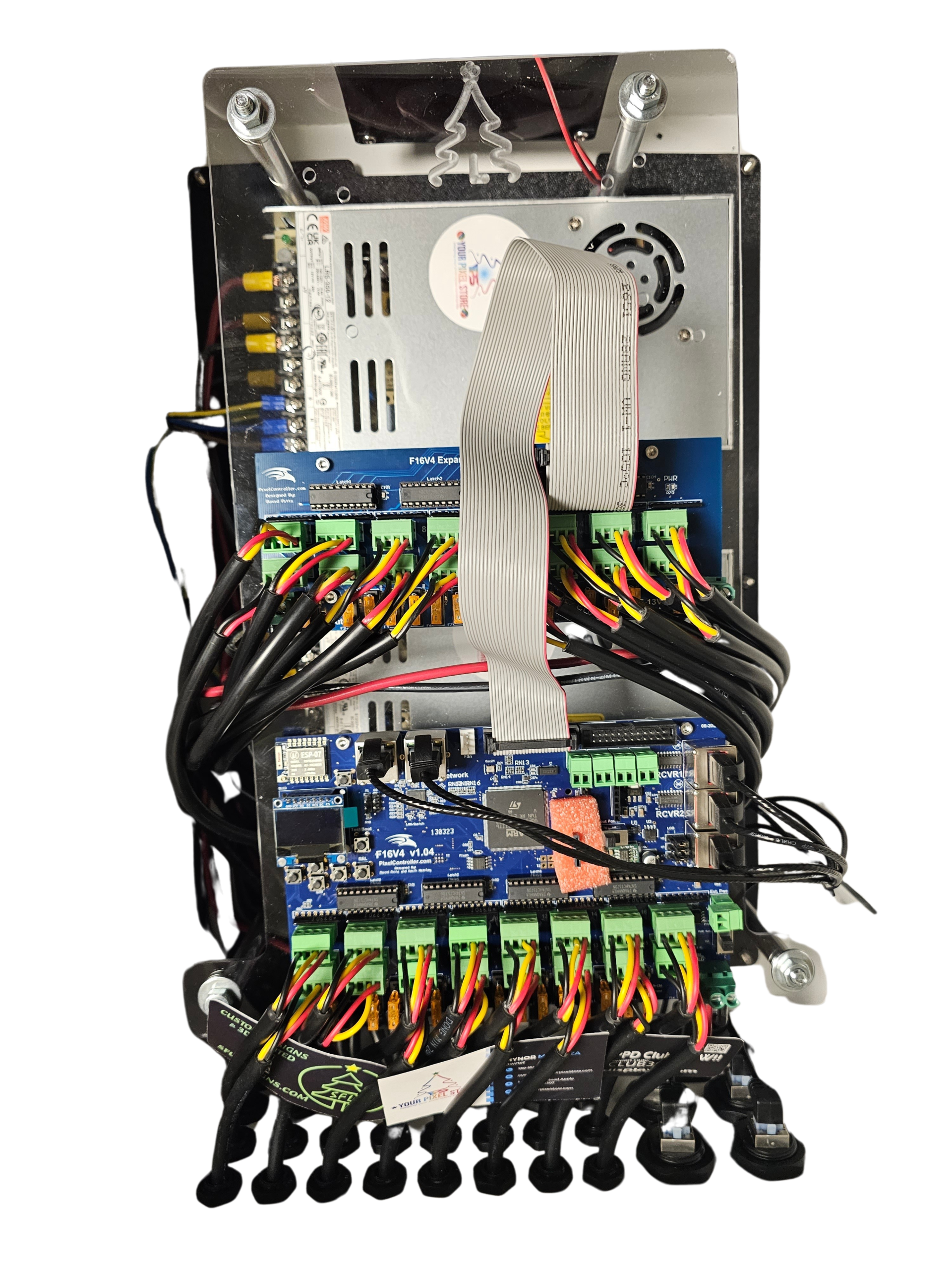
The YPS VIVID 8 is a popular choice for light shows. Begin by connecting it to your computer and opening xLights. Within the software, configure the settings to match the VIVID 8 specifications. This quick setup allows for seamless operation, making it easier to control your lights precisely how you envisioned.
First Light with Ready to Run Controller
If you’re using a Ready to Run Controller, the setup simplifies further. Connect it, and xLights should recognize it automatically. This easy connection saves time and eliminates setup frustration. Your lights will soon be shining brightly, captivating everyone who sees them.
Enhancing Your Light Show Setup
Now that your basics are set, let’s explore ways to enhance your light show for an even more stunning display.
Choosing the Right Pixel Controller
Selecting a suitable pixel controller is critical for your display’s success. The right controller, like those from Your Pixel Store, ensures that your lights operate efficiently and reliably. Consider the size of your display and the types of lights you plan to use when making your choice. A well-matched controller leads to a smoother and more visually appealing show.
Benefits of Bullet and Gumdrop Pixels
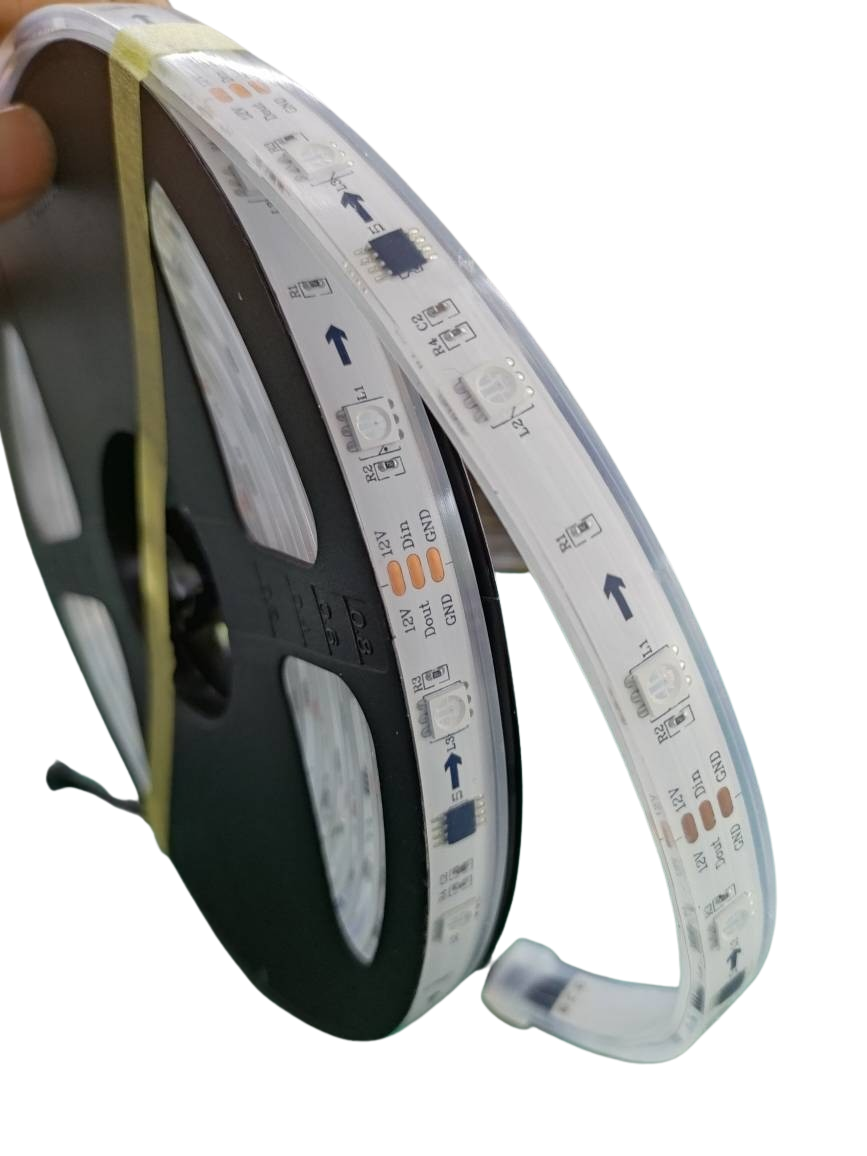
Bullet and gumdrop pixels offer unique advantages. Bullet pixels provide a classic look, ideal for outlines and borders. Gumdrop pixels, on the other hand, offer a softer, more diffused light, perfect for filling spaces. Both types are available at Your Pixel Store, providing flexibility for your design needs.
Weatherproof Enclosure and Power Solutions
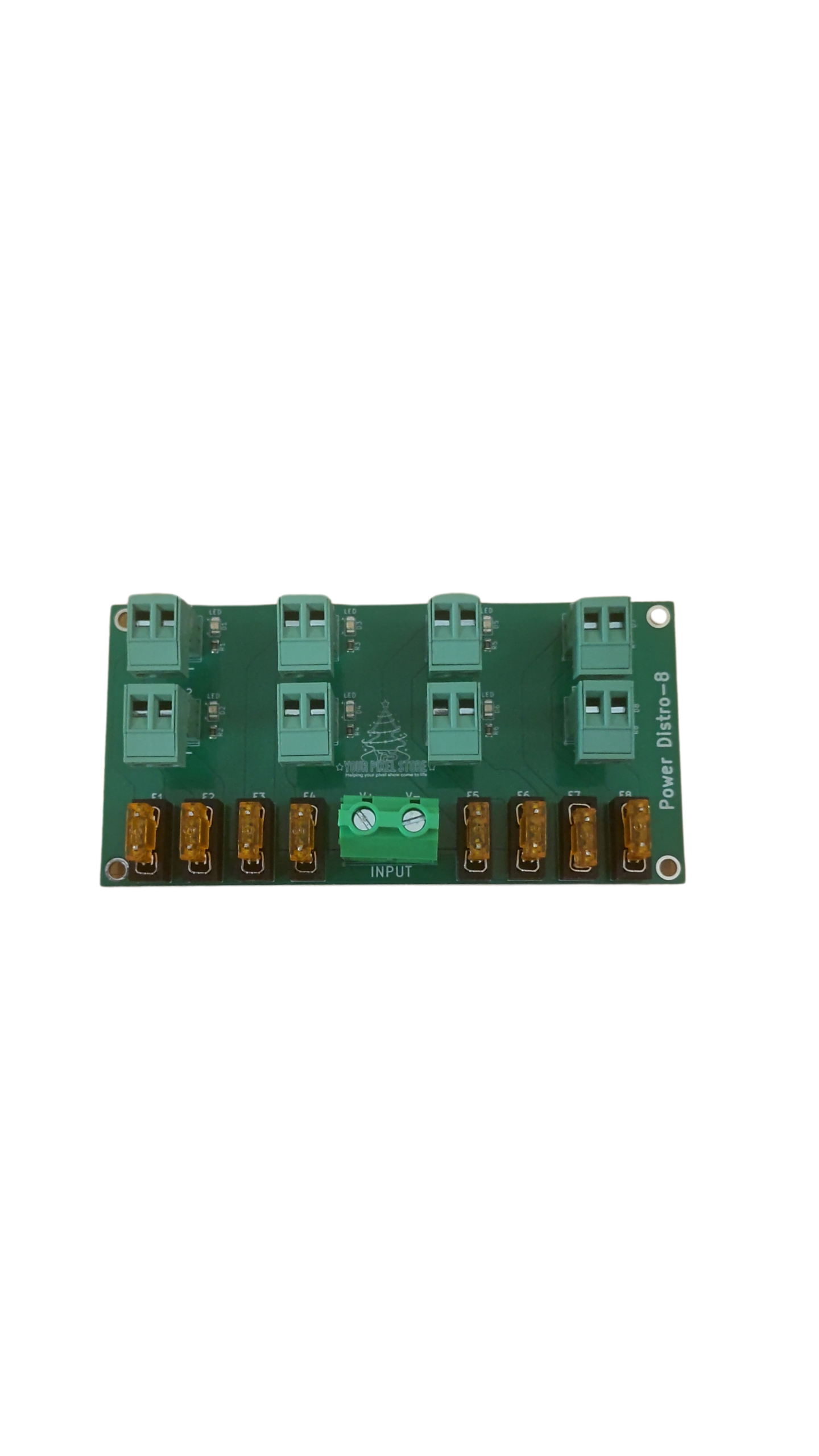
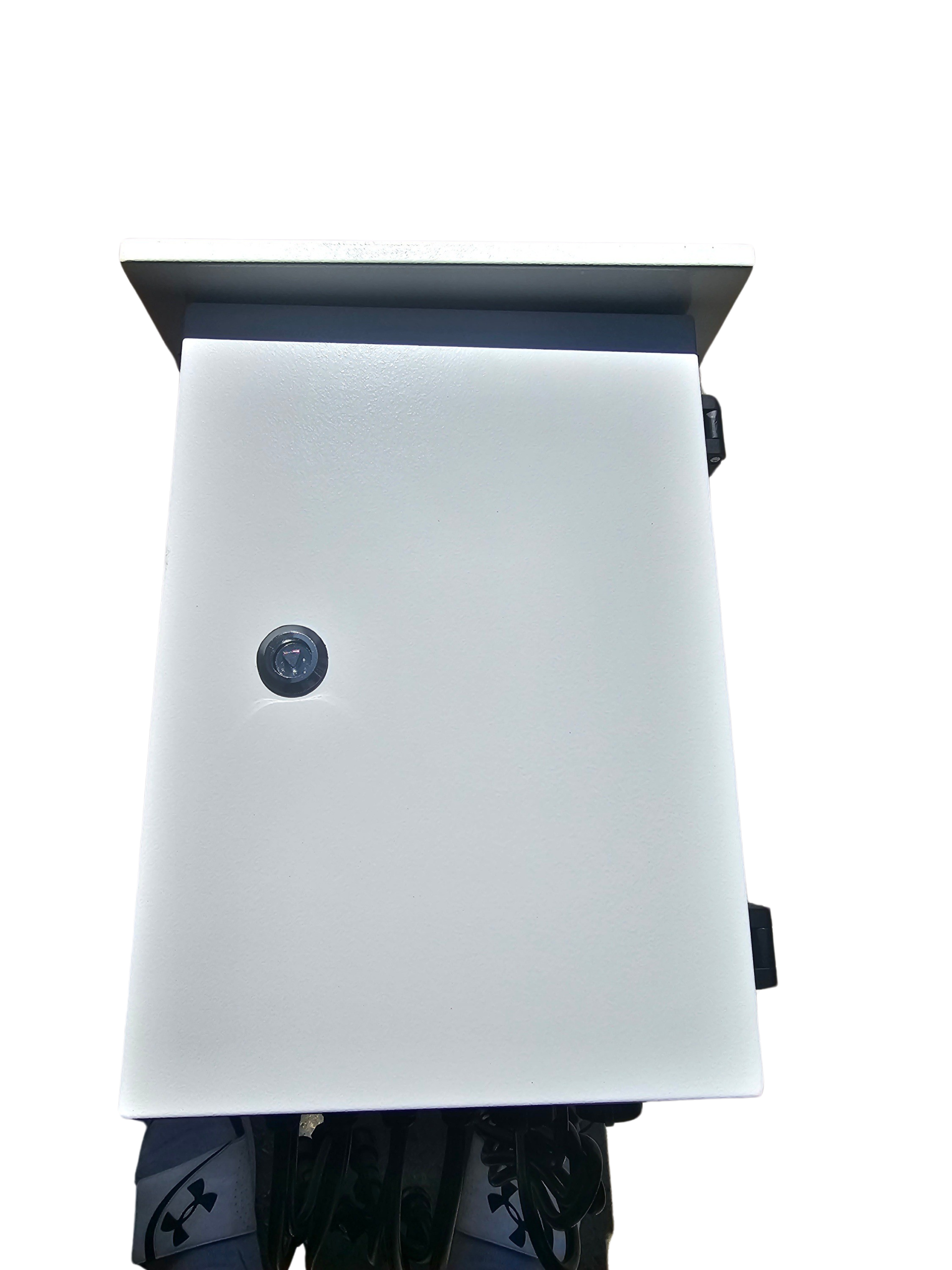
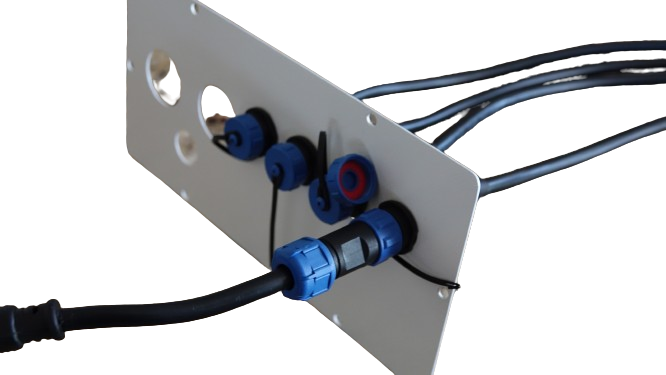
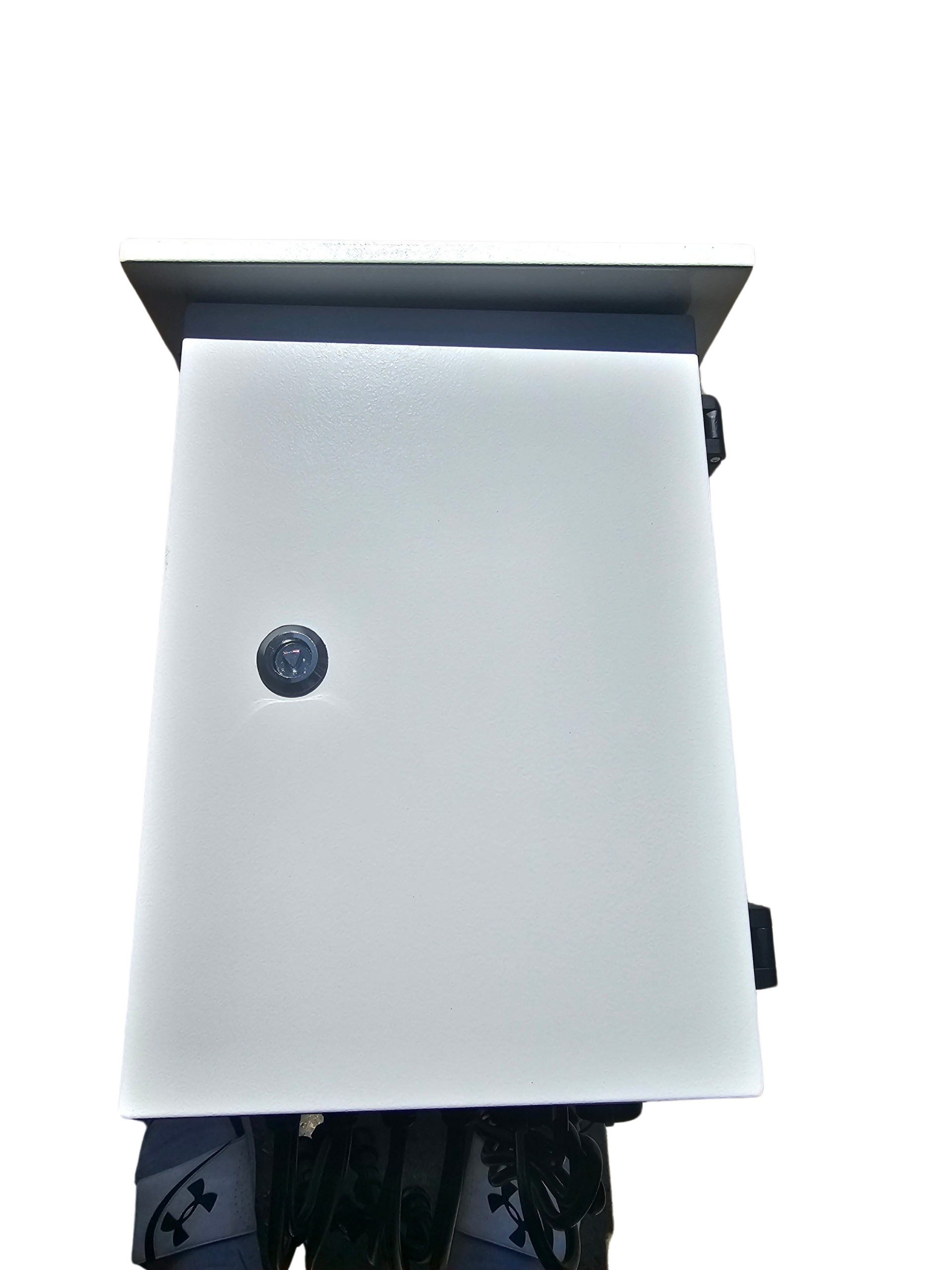
Protecting your equipment from the elements ensures longevity. Invest in a weatherproof enclosure to shield controllers and power supplies from rain and snow. Efficient power solutions, like those found at Your Pixel Store, keep your setup running smoothly without interruption. By safeguarding your equipment, you maintain a reliable and durable light display.
For more guidance on xLights setup, check out our detailed xLights Setup Made Simple: From First Layout To First Show.