Blog
ASRock RGB Software: Sync Polychrome RGB with Pro Pixel Controllers for Holiday and Event Shows

Most PCs with ASRock Polychrome RGB handle stunning onboard lighting, but connecting to a full-scale pixel show takes more than motherboard magic. If you want your PC’s RGB to sync flawlessly with professional pixel controllers like xLights using E1.31 or Art-Net, there’s a clear path to follow. This guide walks you through setting up ASRock RGB software alongside Your Pixel Store’s proven hardware to create reliable Halloween, Christmas, or event light shows that run without a hitch. For more on ASRock RGB software, visit this link.
Getting Started with ASRock RGB Software
To unleash the full potential of your ASRock RGB software, it’s crucial to understand the basics and limitations of Polychrome RGB. This section guides you through the essentials and the initial setup steps.
Understanding Polychrome RGB Basics
Polychrome RGB is the key to unlocking vibrant light shows on your PC. It offers a range of color options and effects that can make your setup pop. This software allows you to control the onboard RGB lighting, giving your PC a unique glow. It’s easy to install and user-friendly, making it a popular choice for both beginners and experienced builders. By mastering the basics, you open up a world of creative possibilities for your RGB setup.
Limitations of RGB Motherboard Lighting
While Polychrome RGB is a powerful tool, it has its limitations. Motherboard lighting is often limited to a few zones, restricting the complexity of your light show. These limitations can be a hurdle if you’re aiming for a professional-grade display. For larger or more intricate setups, additional hardware and software are needed to go beyond these constraints. Recognizing these limitations helps you plan effectively for any upgrades or expansions.
Polychrome RGB Download and Setup
Getting started with Polychrome RGB is straightforward. First, download the software from the ASRock official support page. Once downloaded, follow the installation prompts to complete the setup. After installation, you’ll find a variety of settings to customize your RGB lighting. Adjust the colors, patterns, and brightness to match your style. With this setup, your PC will be ready to sync with more advanced lighting systems.
Bridging PC Lighting with Professional Shows
Connecting your PC lighting to a professional show setup requires a bit more finesse. This section will guide you through synchronizing PC RGB with professional-grade lights, utilizing tools like xLights and pixel controllers.
Sync PC RGB with Lights Using xLights
To sync your PC RGB with lights, xLights is an essential tool. xLights allows you to create stunning light shows that sync perfectly with your hardware. Start by downloading xLights and installing it on your PC. With xLights, you can design intricate displays and coordinate them with your PC’s RGB lighting. The software’s interface is intuitive, making it easy to map out your design. xLights bridges the gap between basic RGB settings and professional light shows, offering endless creative potential.
Connecting to Your Pixel Controller
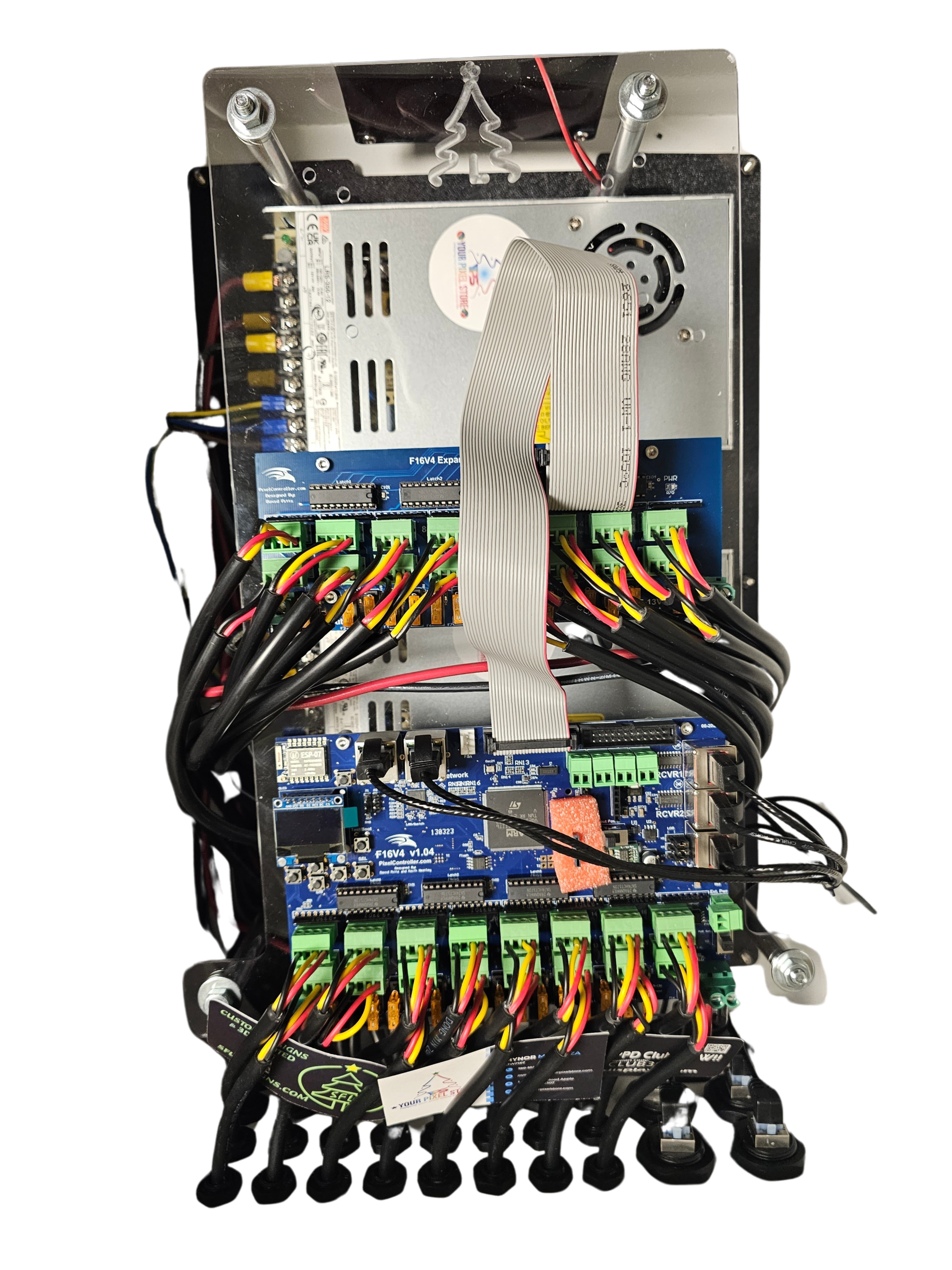
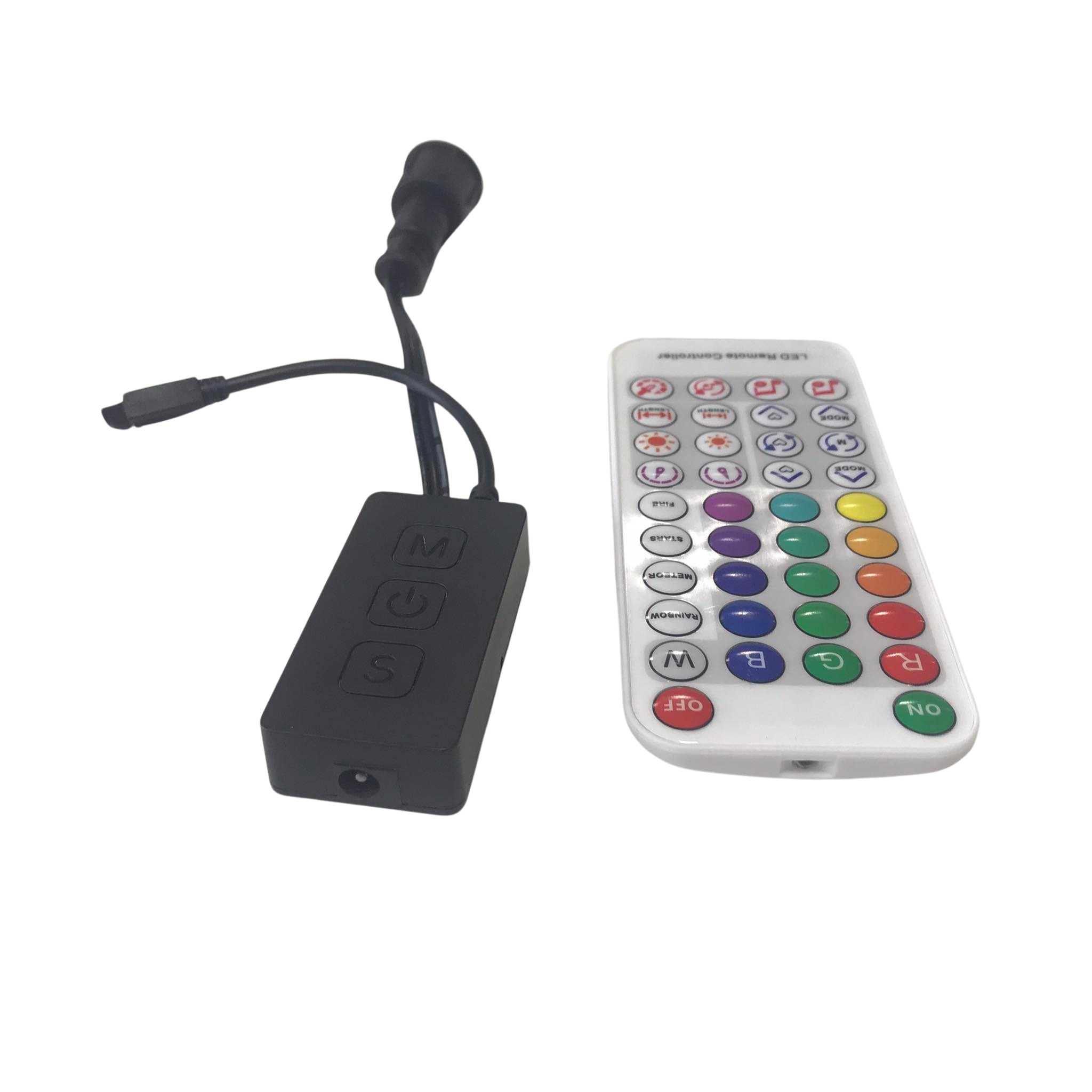
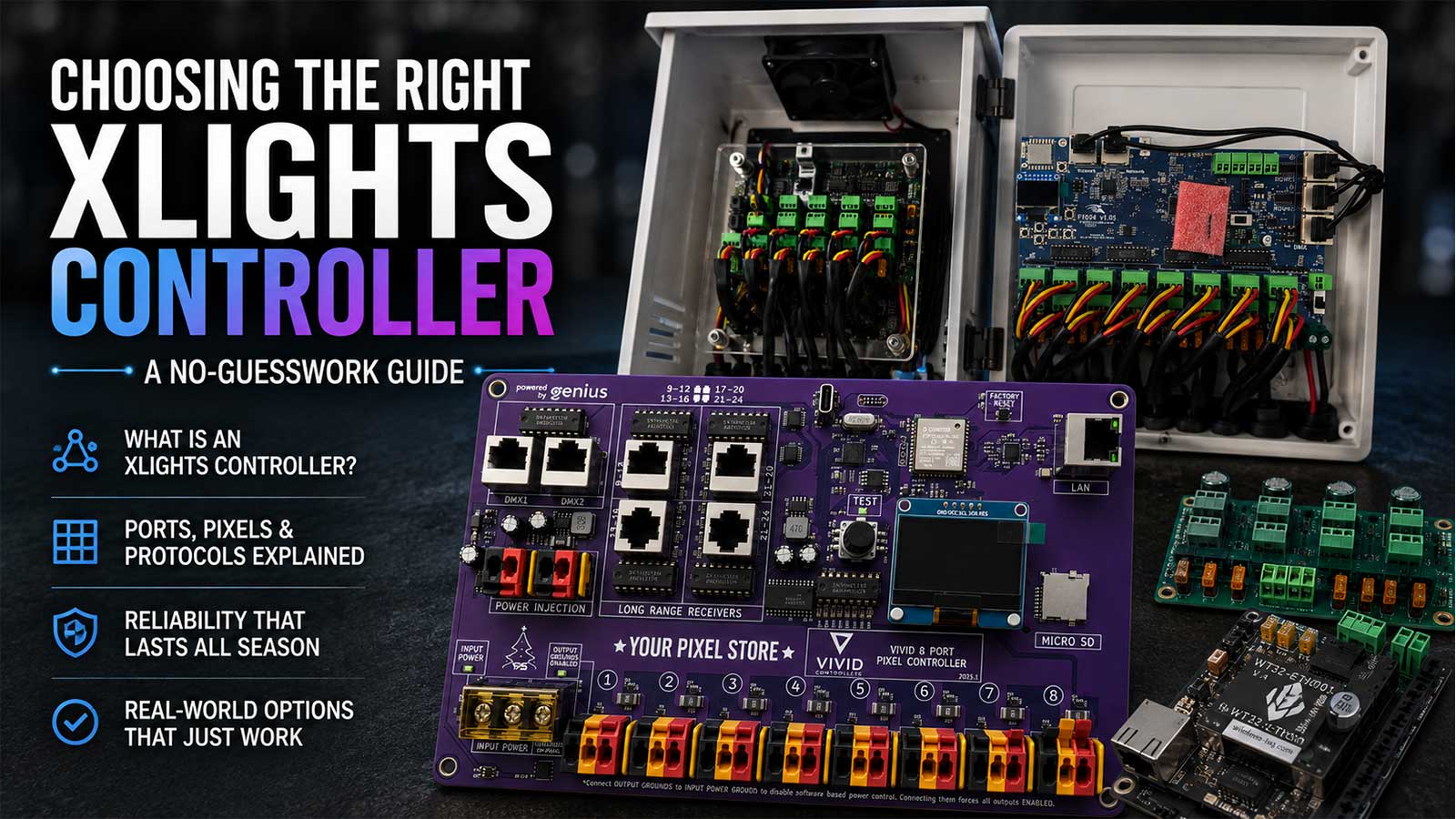
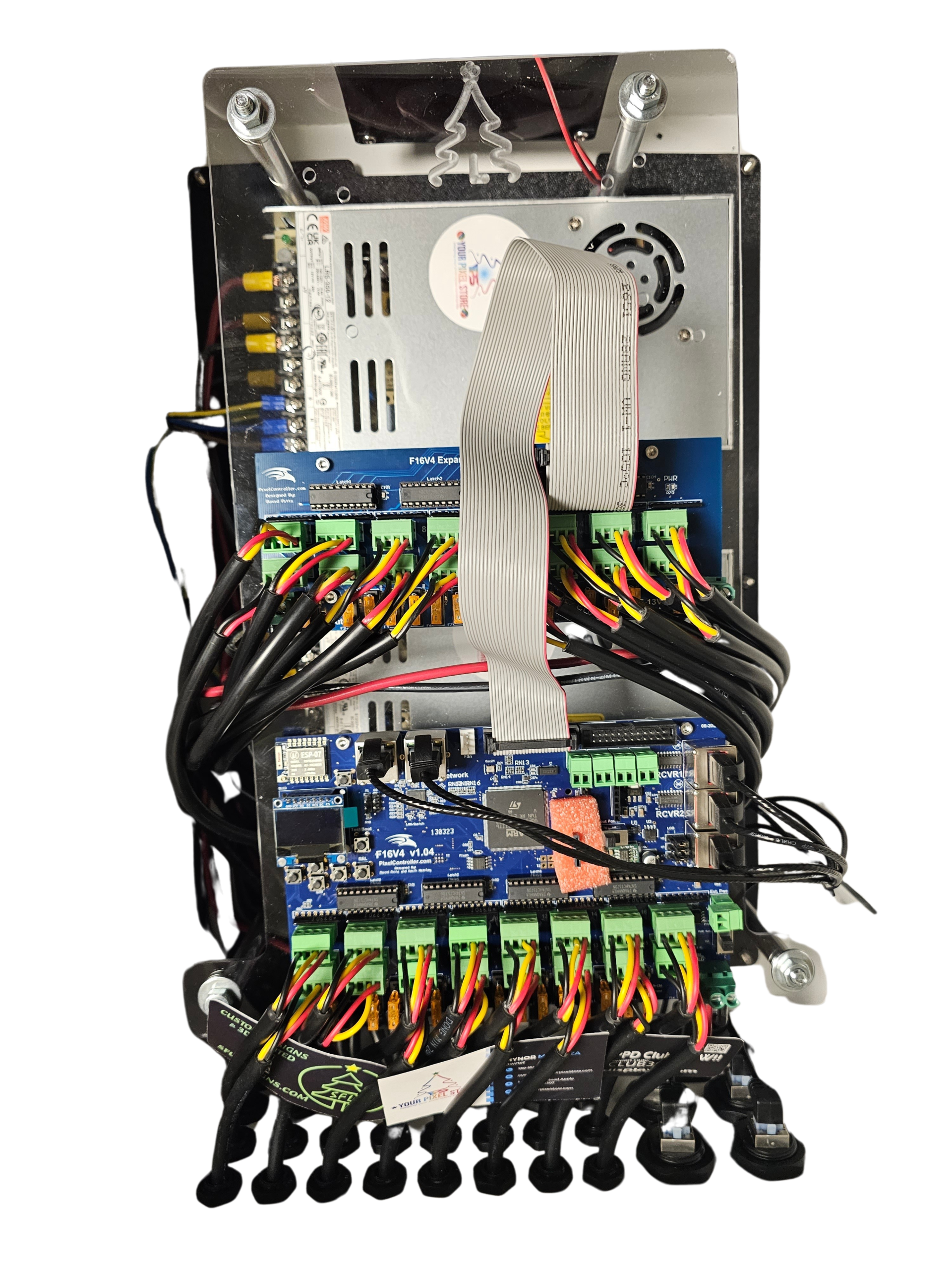
Once xLights is set up, the next step is connecting your PC to a pixel controller. Pixel controllers like the YPS VIVID 8 offer robust control over your lighting setup. These controllers manage each pixel individually, allowing for complex patterns and sequences. To connect, plug your ARGB header into the pixel controller and configure the settings in xLights. This connection ensures precise control over your light show, enhancing both the visual impact and reliability.
Setting Up E1.31 and Art-Net
Setting up E1.31 and Art-Net is crucial for a seamless light show. These protocols enable communication between your PC and lighting systems. Start by configuring your network settings to support E1.31 or Art-Net. Once configured, you can assign IP addresses and subnet masks to your devices. This setup ensures data flows smoothly between your PC and controllers, reducing latency and increasing synchronization precision in your displays.
Reliable Lighting for Holidays and Events
Ensuring your lights shine bright during the holidays or events requires special considerations. From weatherproofing tips to power management, this section covers everything you need to know for reliable lighting setups.
Halloween and Christmas Light Show Tips
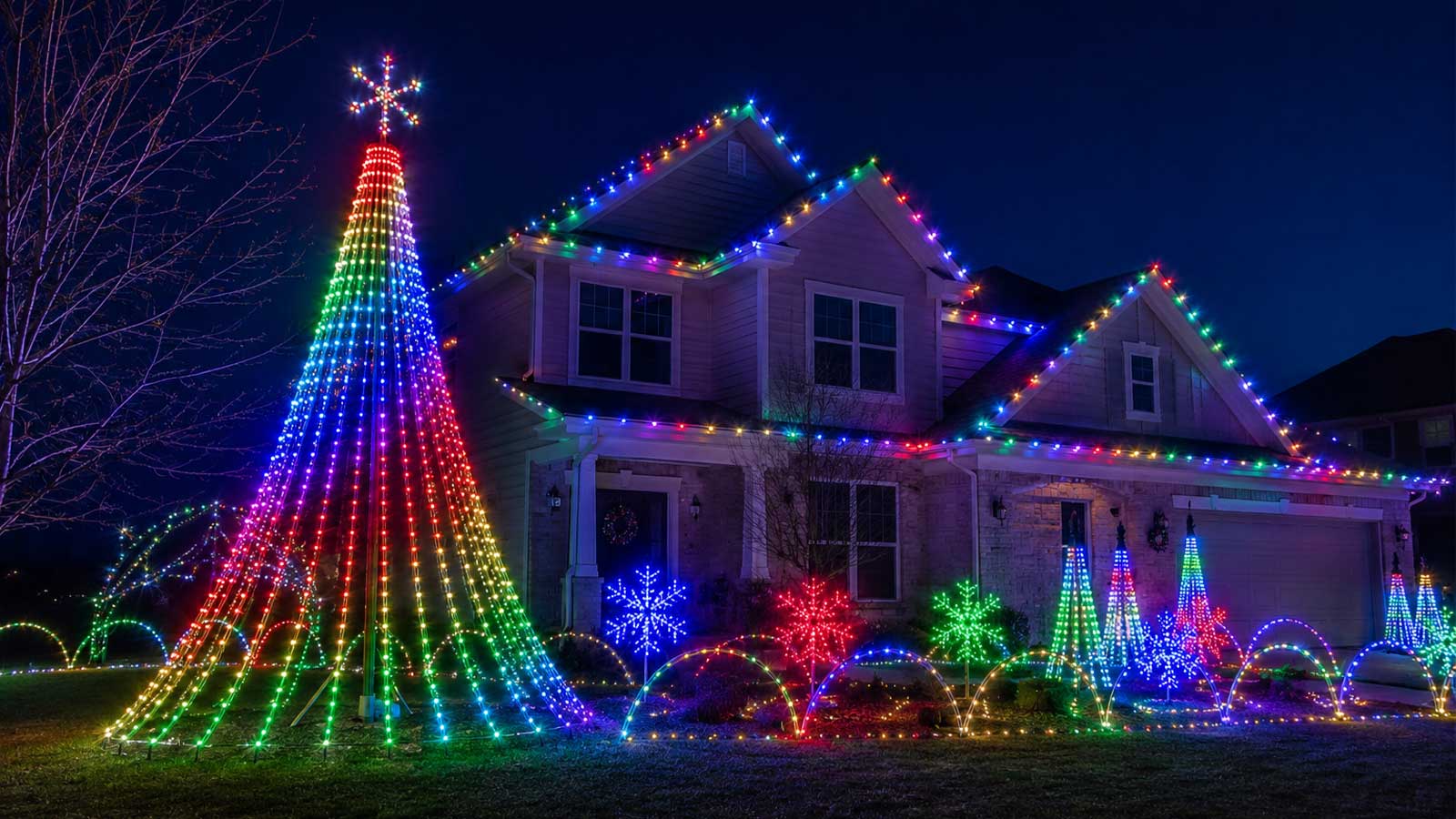
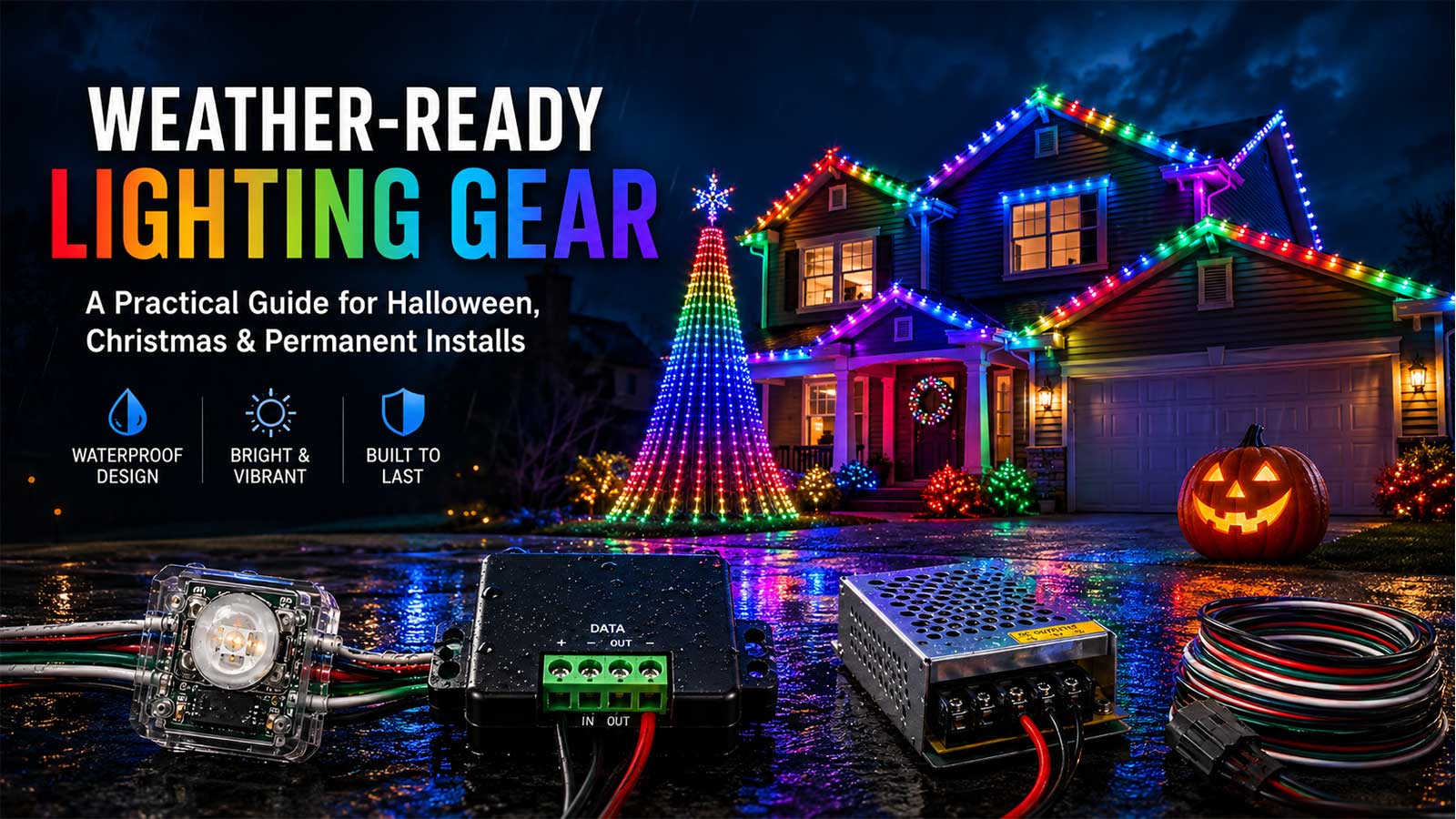
Creating an impressive light show for Halloween or Christmas involves careful planning. First, choose a theme that fits the occasion and select colors that complement it. Use xLights to design sequences that match your theme. For Halloween, consider spooky patterns and colors like orange and purple. For Christmas, go with classic red and green combinations. Planning ahead allows you to create a show that captivates your audience and fits the festive spirit.
Power Injection and Weatherproofing
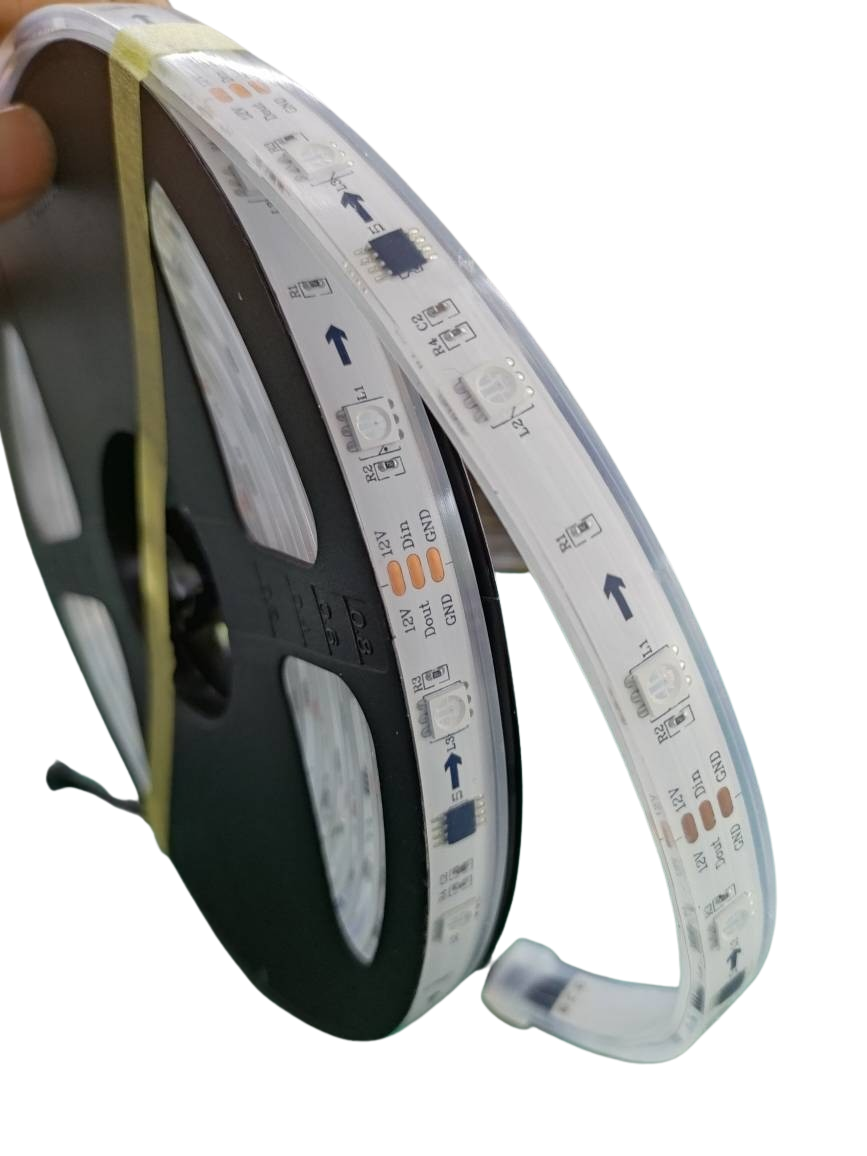
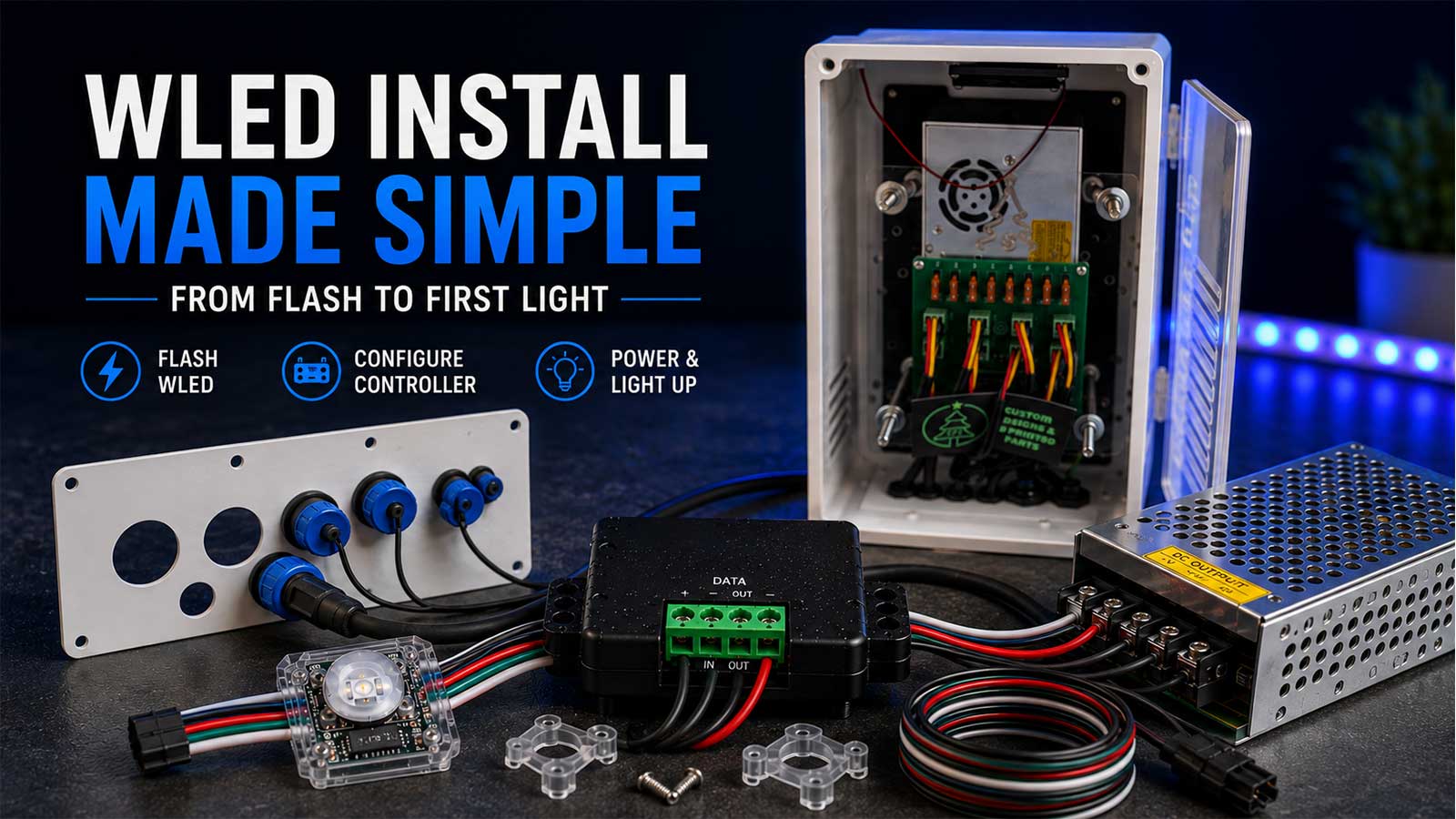
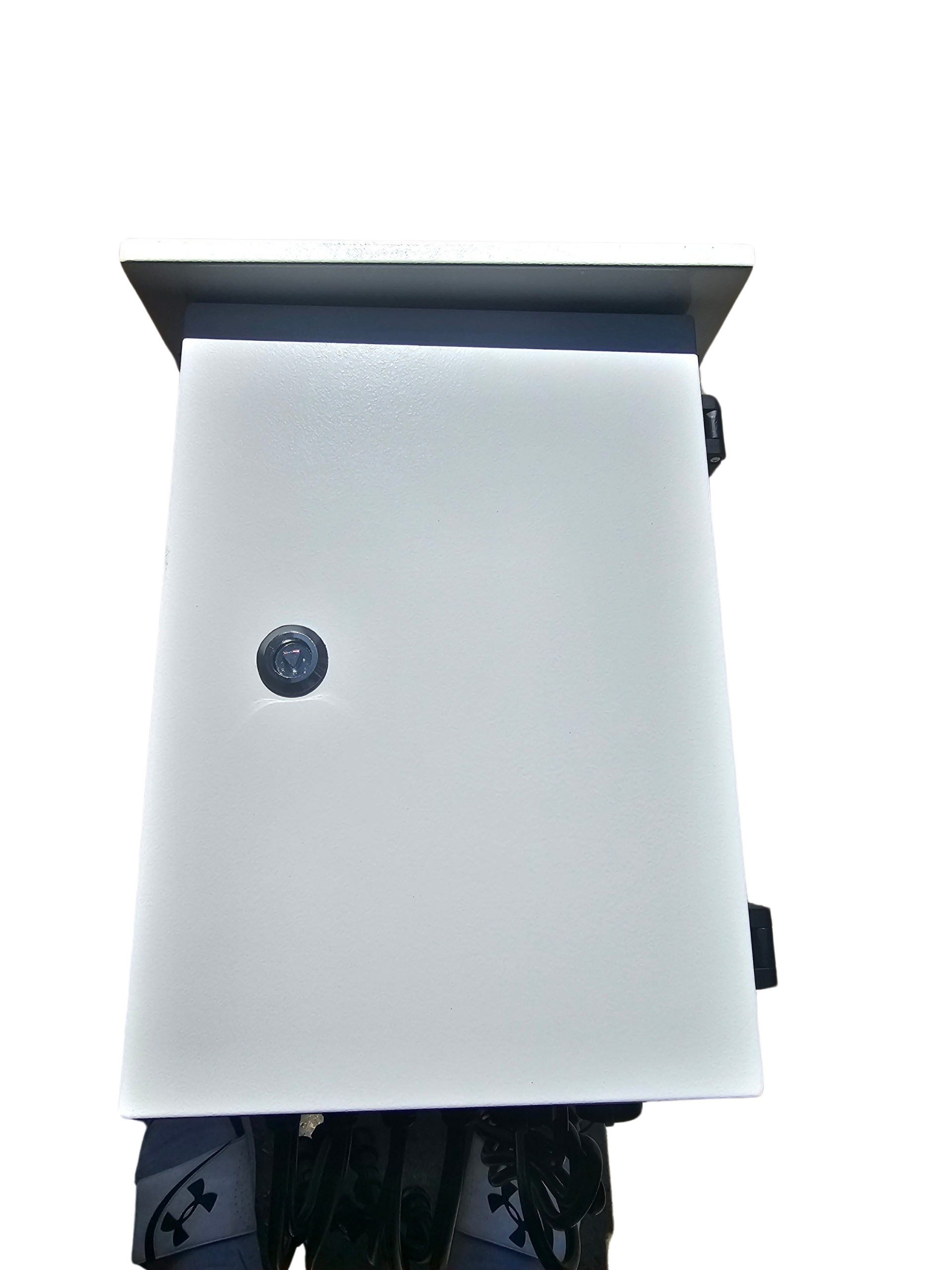
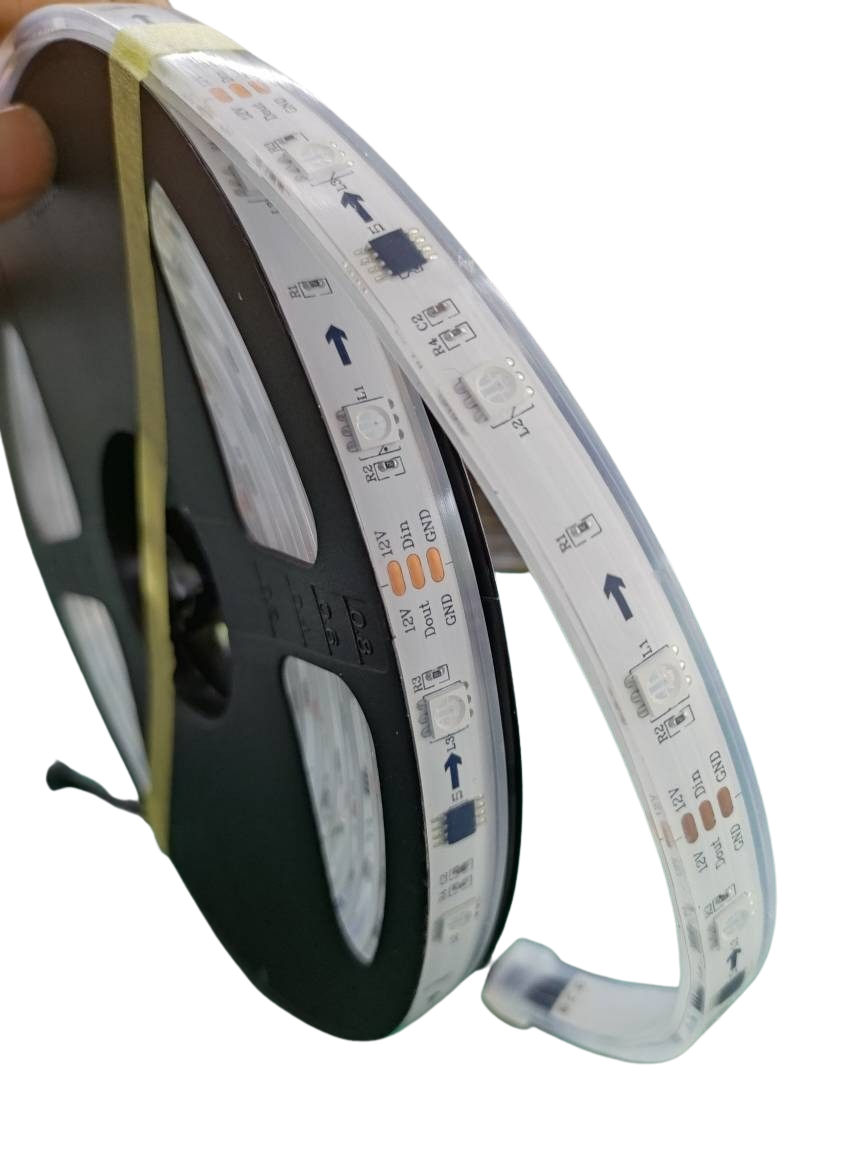
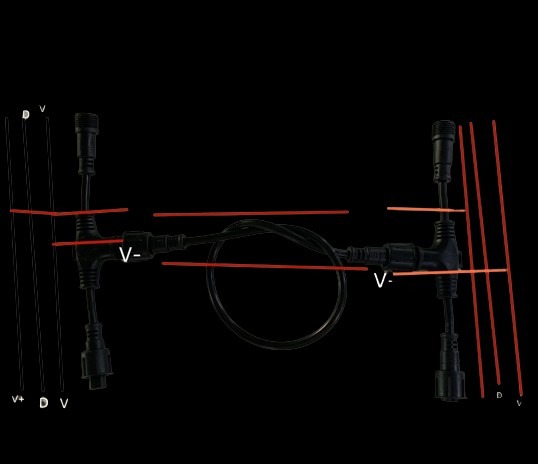
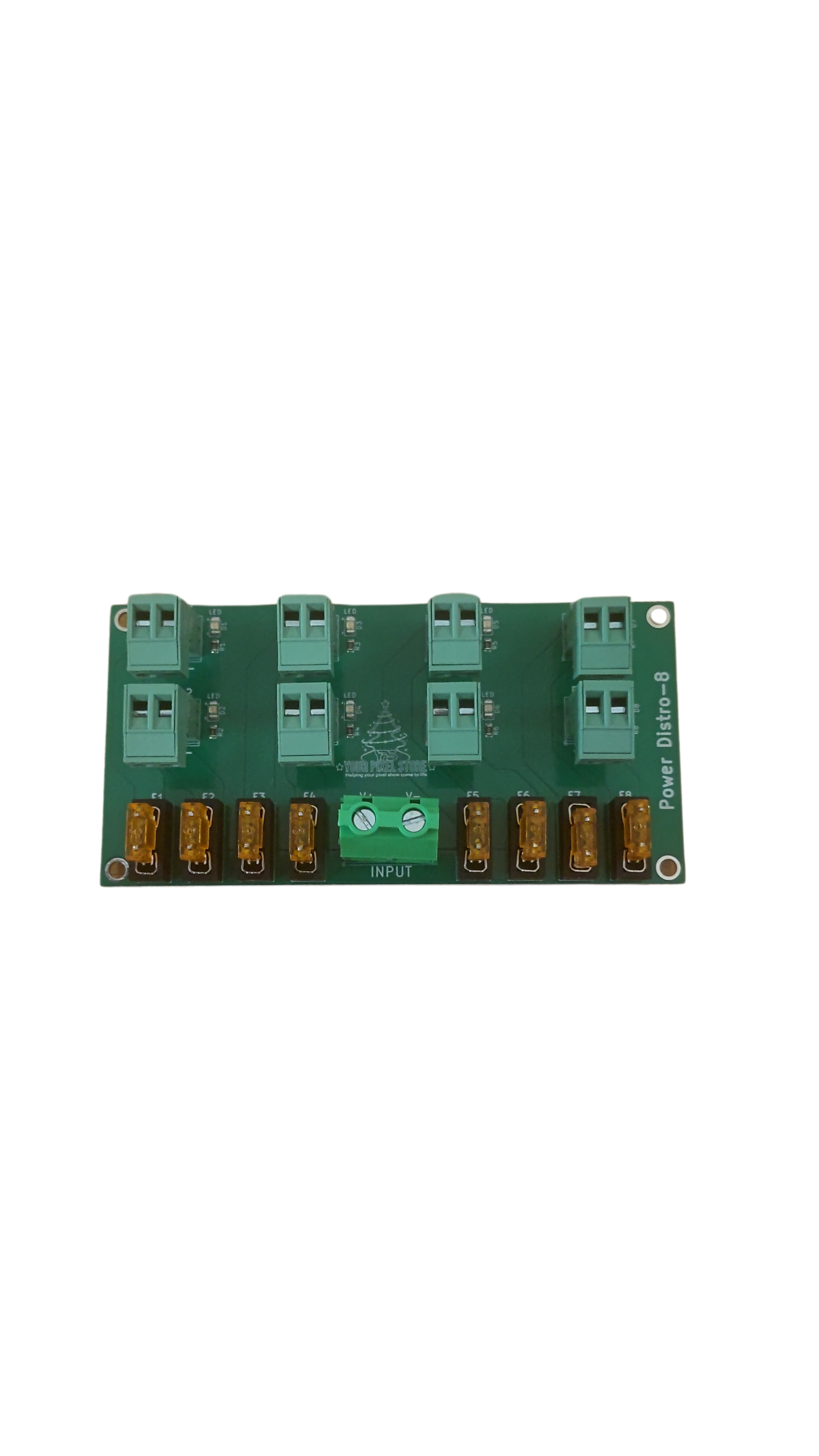
Power injection and weatherproofing are vital for outdoor displays. Power injection ensures that all pixels receive enough power, preventing dimming or flickering. Use power balance T-cables to distribute power evenly across your setup. For weatherproofing, encase your equipment in protective covers or enclosures. This prevents moisture from damaging your lights and controllers. Proper power management and weatherproofing guarantee your light show will run smoothly, even in harsh conditions.
YPS VIVID 8 and Ready-to-Run Systems
Consider using ready-to-run systems like the YPS VIVID 8 for hassle-free setups. These controllers come pre-configured, saving time and effort during installation. They offer quick deployment, perfect for those who want to get their show running fast. Ready-to-run systems are ideal for both beginners and seasoned builders looking to streamline their light show setup. By choosing a pre-configured system, you can focus more on the creative aspects of your display.
Frequently Asked Questions
How do I download ASRock RGB software?
To download ASRock RGB software, visit the ASRock official support page. Follow the instructions to complete the download and installation.
What is xLights, and how does it work with my PC?
xLights is a software that allows you to design and synchronize complex light shows. It works with your PC by connecting to RGB hardware and pixel controllers, enabling professional-grade displays.
Why do I need power injection for my light show?
Power injection ensures that all parts of your light show receive adequate power, preventing issues like dimming or flickering. It’s crucial for maintaining consistent lighting across large displays.
How can I weatherproof my outdoor lighting setup?
To weatherproof your setup, use protective covers and enclosures. These protect your equipment from moisture and other environmental factors, ensuring a reliable performance outdoors.
What are the benefits of using a ready-to-run system like YPS VIVID 8?
Ready-to-run systems like YPS VIVID 8 offer quick setup and deployment. They come pre-configured, making them ideal for those who want to save time and focus on designing their light shows.