Blog
Falcon Player (FPP) 101: Run Your Pixel Show

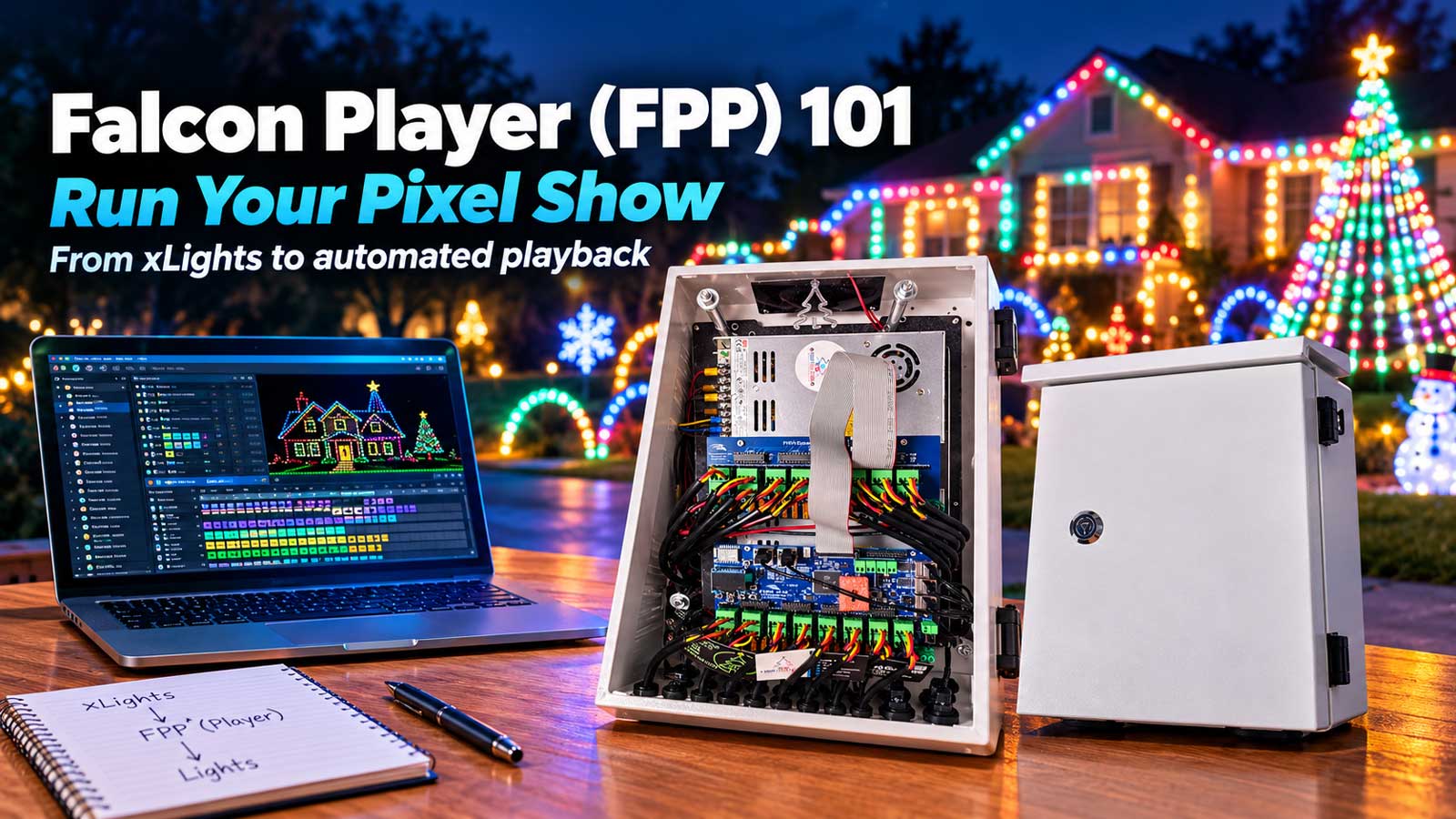
Falcon Player (FPP) is free software that runs your light show. You write it to a small computer like a Raspberry Pi, hand it the sequences you built in xLights, and it plays the show on a schedule with no laptop sitting in the yard. FPP isn’t a controller and it doesn’t sequence anything. It’s the piece in the middle that starts the music at 6 p.m. and keeps every prop on beat until the last song ends.
This page takes you from a finished sequence to a display that lights itself, including the parts people call us about: the SD card, the address that won’t load, and the upload that left the yard dark.
What is Falcon Player (FPP)?
Falcon Player (FPP) is free, open-source show playback software from the Falcon Christmas project. It runs on a low-cost single board computer such as a Raspberry Pi or a BeagleBone, plays your xLights sequence files along with the audio, and sends pixel data to your controllers over E1.31, DDP, DMX, or Renard. It is software, not a Falcon controller.
The name trips people up. Per the project’s documentation, FPP started as the Falcon Pi Player, named for the $35 Raspberry Pi it ran on. The name dropped to Falcon Player once BeagleBone support arrived.
Two facts from the project’s FAQ settle most of the confusion. The software is free and always will be, and you buy the hardware yourself. You don’t need Falcon controllers to run FPP, and a Falcon controller doesn’t need FPP.
FPP, xLights, and your controller: who does what
Three pieces run a pixel show, each with its own job.
| Piece | Job | Where it lives |
|---|---|---|
| xLights | Designs the display and builds the sequences | Your computer |
| FPP | Plays the sequences on a schedule and directs the show | A Pi, a BeagleBone, or a controller that has it onboard |
| Controller | Turns show data into pixel data on the wire | The enclosure in your yard |
You need xLights to build a show, and FPP once you want it to run without you. Our xLights sequencing 101 guide covers design and sequencing. This page picks up where it leaves off.
What FPP replaces is a laptop in the garage with an extension cord running to it. That setup holds up in October. In December it sleeps, installs an update at 7 p.m., or loses Wi-Fi at 20 degrees, and the yard goes dark with the neighbors parked out front. An FPP player boots into playback and does nothing else.
What hardware runs FPP: three honest paths
FPP needs a computer to live on, and there are three realistic ways to give it one. The difference between them is architectural, not a matter of which board is better.
1. A dedicated Raspberry Pi player. The Pi sits on your network and sends data to your controllers. It has no pixel ports of its own, so it drives everything over Ethernet. A Pi Zero 2 W runs about $15, or $30 to $60 for a kit with a case and headers, plus a microSD card. Cheapest way in, and the easiest to keep a spare of. The tradeoff is two boxes instead of one.
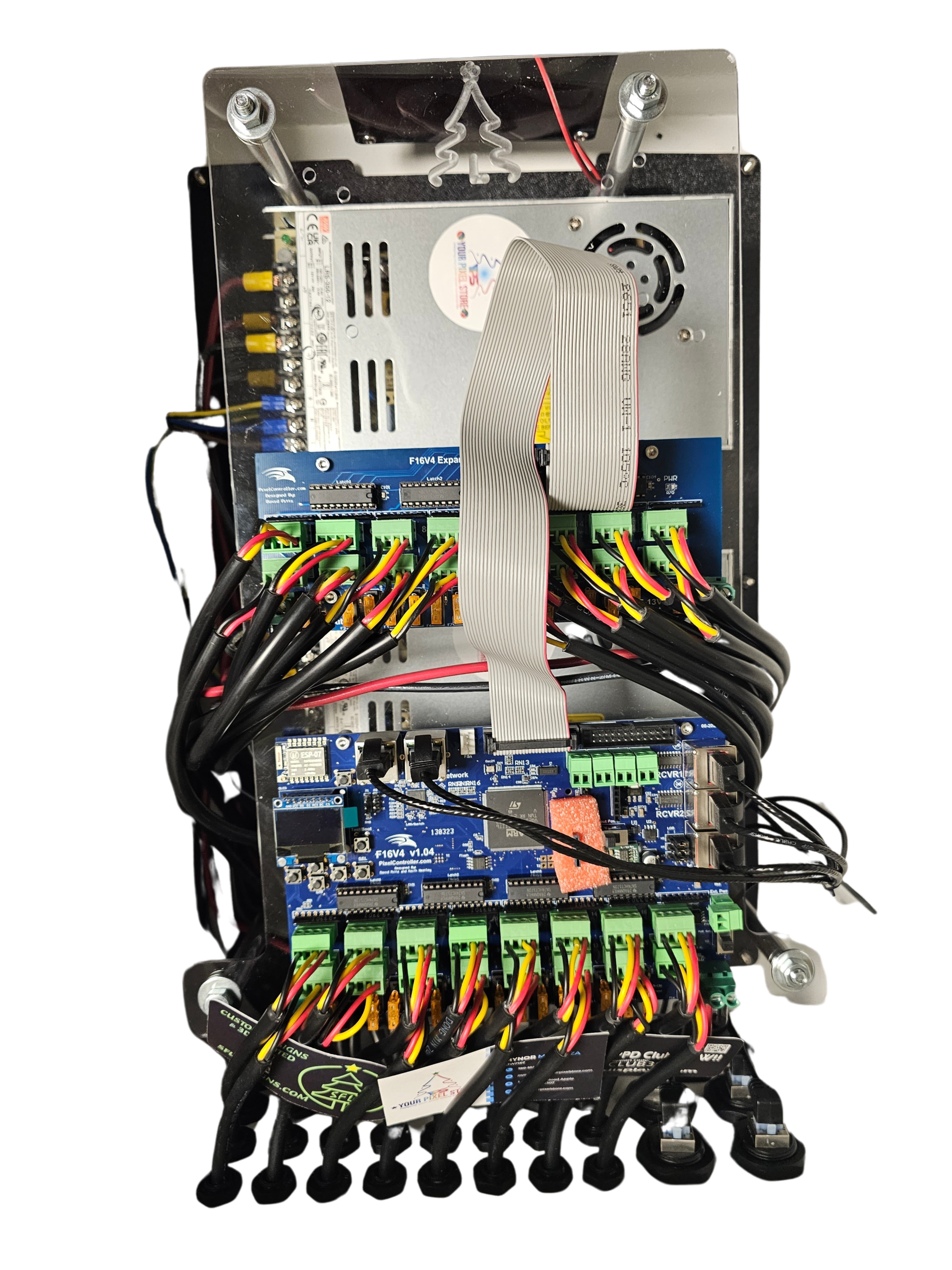
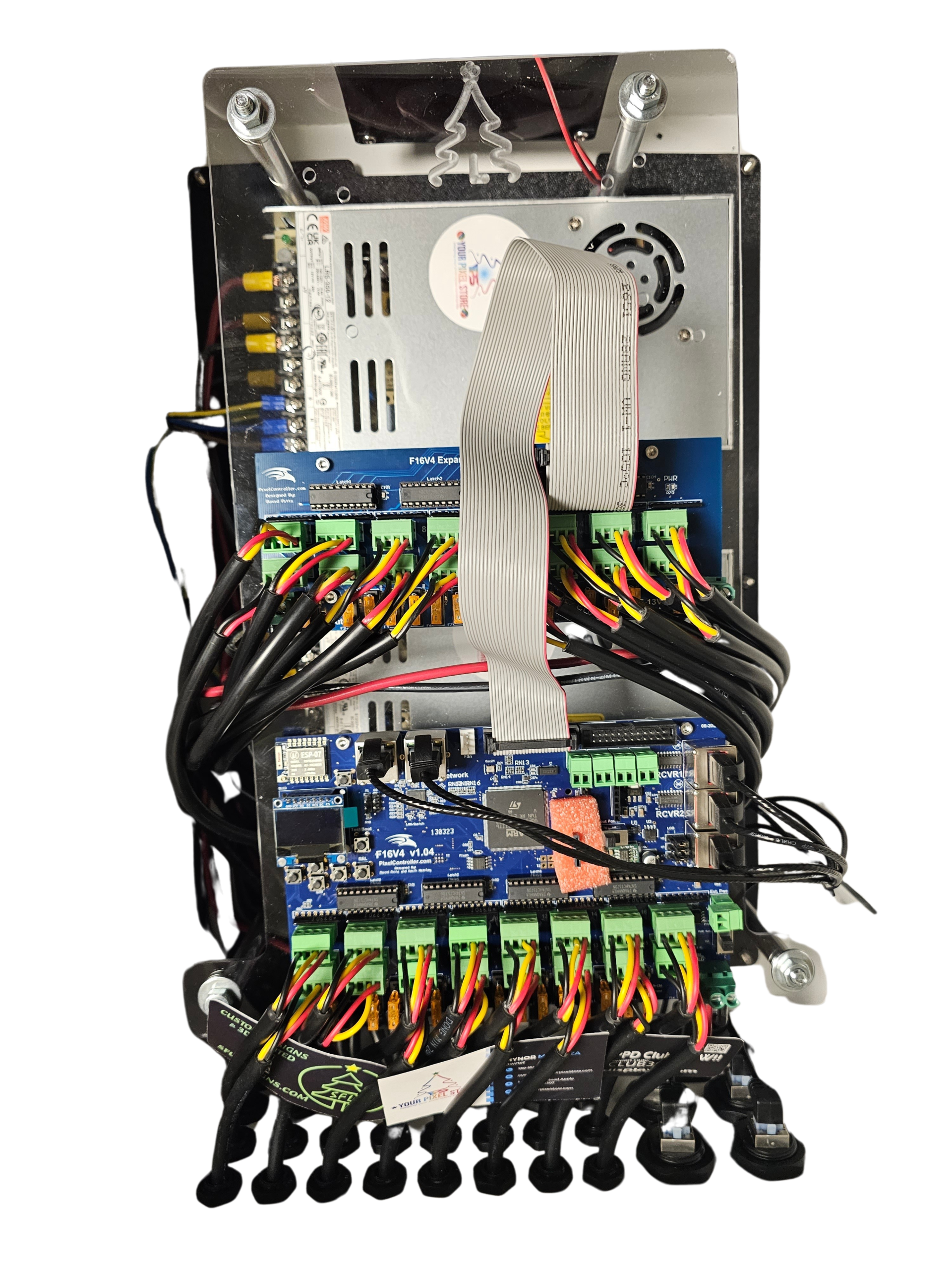
2. A controller with FPP onboard. Some controllers are a cape bolted to a BeagleBone, so FPP runs on the controller itself and drives the pixels directly. One box, one address, no separate player. The Kulp boards are the ones we build most often this way. More controller than a small display needs, and the right answer when you want everything in a single enclosure.
3. A controller that takes data from a player. Most controllers don’t run FPP. They listen for it over E1.31 or DDP, with FPP living on a separate Pi. This is the most common setup in the hobby by a wide margin, and it’s what you have if you already own a controller and are adding a player to it.
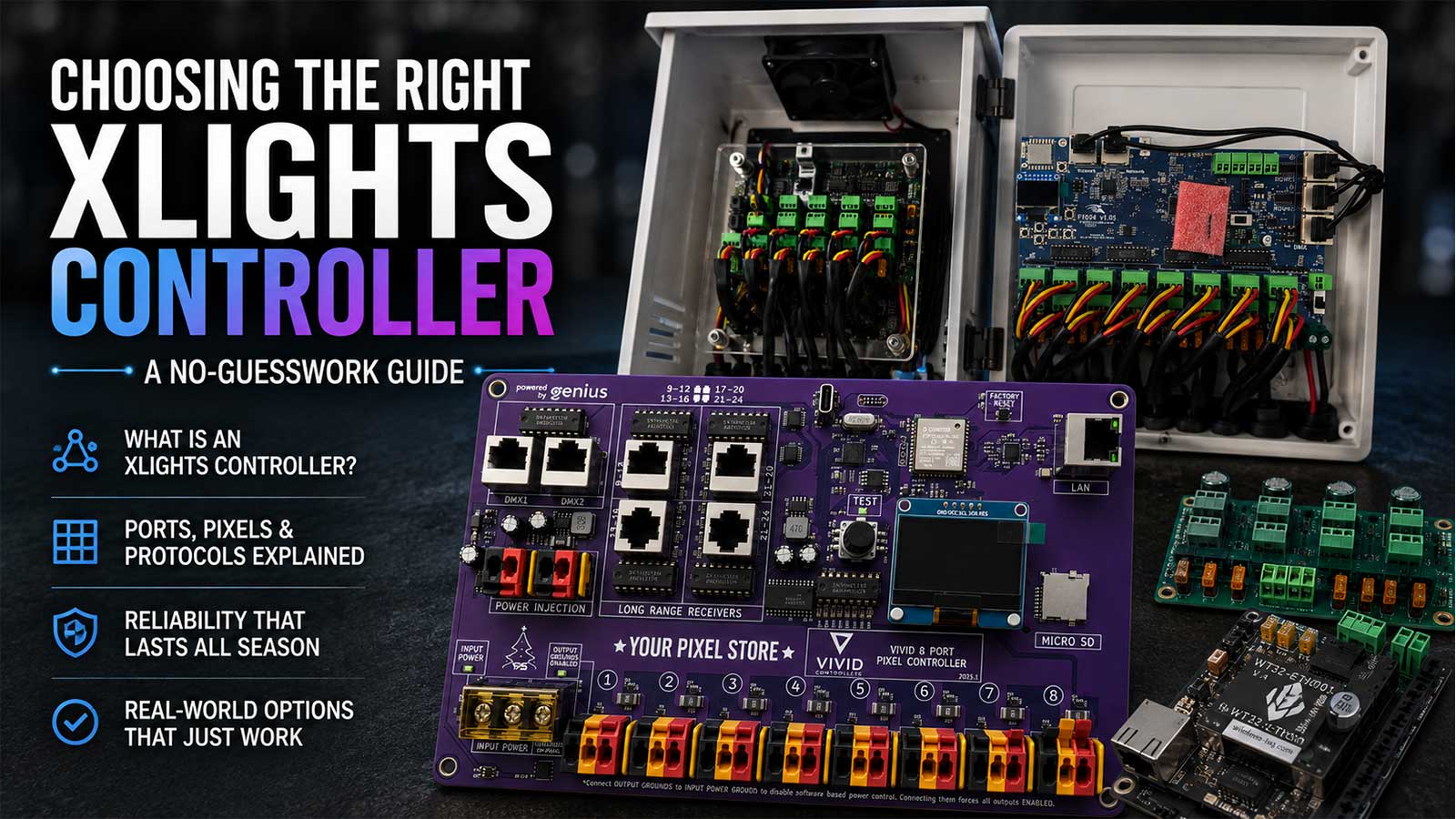
Which board fits your pixel count, port count, and budget is its own decision, and our xLights controller guide walks it properly. Our own builds are on the Ready-to-Run controllers page, and the full range is under pixel controllers.
FPP download and writing the SD card
FPP images come from the Falcon Christmas project’s releases page on GitHub. There’s no installer. You download an image file and write it to a card.
FPP 10.0 is the current production release, published August 21, 2026 after five public betas. The project calls it the largest release in its history: roughly 1,440 commits and 22 contributors over about a year. It moves the base OS to Debian 13, replaces the entire media stack, and ships new 64-bit images.
Which image you want depends on your board.
| Board | Image |
|---|---|
| 64-bit capable Pi: 3, 4, 5, Zero 2 W, Compute Module 4 or 5 | Pi64 |
| Older or 32-bit-only Pi: B, B+, Zero, Zero W | Pi |
| BeagleBone Black, Green, PocketBeagle, Green Gateway | BBB |
| PocketBeagle 2 and PocketBeagle 2 Industrial | BB64 |
Three things about FPP 10 worth knowing before you flash.
Moving from a 32-bit image to a 64-bit one means re-imaging. An in-place OS upgrade cannot switch architectures. Back up your config, flash the new image, restore the config. Staying on the same architecture allows an in-place upgrade from the About page instead.
Most plugins need updating or reinstalling after the Debian 12 to 13 jump. If your show leans on plugins, budget time for that rather than discovering it the night before.
Some older USB Wi-Fi adapters stop working, because only in-kernel drivers ship now. One more argument for running a wire to the player, which is the right call anyway.
If you already have a 9.5 player running and your show goes live in a few weeks, there’s a case for leaving it alone until January. A working player three weeks before opening night is worth more than a feature list. For a new build, or a player you’re setting up now with time to test, take FPP 10.
For the card, the Falcon Player manual calls for a microSD of at least 4GB, Class 10 or better, and recommends 16GB or larger, naming the Samsung Evo Select and SanDisk Ultra. Write the image with Raspberry Pi Imager rather than copying the file across.
One habit worth building: image a second card in October and label it. Cards fail more than anything else on a player, and swapping one takes four minutes.
Why fpp.local won’t load, and what to do instead
fpp.local isn’t a website. It’s an mDNS name your player broadcasts on your local network, and it resolves only if your computer and network both handle mDNS. Windows machines without Bonjour, VLANs, and routers with client isolation all break it. When it fails, find the player’s IP in your router’s client list and use that instead.
This is the call we get most, and the tell is that it works on one machine and not another in the same house. A Mac finds the player, the Windows laptop beside it times out, and nothing is wrong with the player.
FPP 10 added mDNS discovery so FPP instances find each other automatically, which helps multisync. It doesn’t change anything about whether your laptop can resolve fpp.local, because that part depends on your computer and your network, not on the player.
Once you have the IP, set a DHCP reservation or a static address so it stays put, then write that address on the enclosure with a marker.
While you’re in there, deal with the login. Out of the box FPP’s web page has no password on it, so anyone on your network can open it and start or stop your show. Turn on a UI password in FPP’s settings. The command line account ships with a default password that the project publishes openly in its own FAQ, which is reason enough to keep the player on your own network. Don’t forward ports to it and don’t put it on the internet.
Put FPP on your show network
Run a wire to the player if you can. Wi-Fi is fine on the bench, and it’s the first thing to get flaky in cold, wet weather with a metal enclosure in the way. An unmanaged gigabit switch in the yard, fed by one Ethernet run, holds up far better in December.
Give the player and every controller fixed addresses on the same subnet, on that one switch. Sequences live on the player’s own card, so a router reboot won’t stop a playlist that’s already running, but it can stop the data reaching your controllers.
One change to know about on FPP 10: the player now keeps its DHCP lease across reboots, which is different from how FPP 9 behaved. If you’re troubleshooting an address that won’t change, that’s why.
Move your sequences over with FPP Connect
Sequences reach the player from xLights, under Tools then FPP Connect. It finds FPP instances on your network and uploads what the player needs: channel inputs, channel outputs, your model configuration, and the sequences with their media.
A few settings decide whether this works the first time. The xLights manual says to use V2 FSEQ compressed files for FPP 2.6 and newer, and V2 Sparse for remotes. Set UDP Out to All on the player that runs the show, or its Channel Outputs page comes back blank and the yard stays dark with no error to read. Leave Full xLights Control off unless you mean it, since it wipes settings already on the controller.
Then confirm it landed. Open the player’s web page, check the sequence shows in the file list with today’s date, and check that Channel Outputs is populated. Play 30 seconds while you watch the yard. That’s the step most tutorials skip.
No sequences yet? Our guide to xLights Christmas sequences covers where to get them and how to map them to your props.
Make it run by itself: playlists and schedules
Two steps turn a pile of sequences into a show that starts without you. Build a playlist and add your sequences in the order you want them, then schedule that playlist with a start and stop time.
FPP can run a schedule on chosen days, and it can tie the start time to sunset, so the show still begins at dusk in late December when clock time has drifted by half an hour. FPP 10 adds a calendar view of the schedule, which makes an overlapping entry much easier to spot than the old list did.
Two shows a night is the same idea twice. Build a short playlist for the 5:30 crowd and the full one for 7 p.m., each with its own schedule entry and a few minutes between them so a long song can finish.
Two players in sync: multisync
Multisync keeps two or more FPP instances playing the same show together. One instance is the Player, which FPP’s interface labeled Master in older releases and much of the community still calls that. The others are Remotes. The Player sends sync packets over the network, and the official manual says a remote holds within about one frame of the Player. Not to the microsecond, and close enough that nobody watching can tell. Audio plays from the Player only, or you’ll hear drift while the pixels look fine.
Two things changed in FPP 10. Instances discover each other automatically over mDNS, and new installs default to unicast sync rather than multicast. Existing setups keep multicast through an upgrade, so a mixed-version network can behave differently from a fresh one.
Most yards never need this. One player driving several controllers over Ethernet is the normal setup, and a second player is usually the wrong first fix for a sync problem. When props look out of step, check the frame rate your sequence was built at, then the network path, then whether a controller is overloaded.
Your Pixel Store FPP setup reference
This is the order we walk customers through on the phone. The Falcon Christmas project publishes a complete Falcon Player manual as a PDF for feature-level detail. This is the short version that gets a first show running.
- Pick the hardware. A Pi player on the network, or a controller with FPP onboard.
- Write the image. FPP 10.0, the image that matches your board. Raspberry Pi Imager, microSD 16GB or larger, Class 10 or better.
- Boot it and reach it. Try
fpp.local. If it times out, use the IP from your router. - Set a UI password and a fixed address. DHCP reservation or static, written on the enclosure.
- Set the player mode. Player for a single unit, Player and Remote for multisync.
- Add your controllers. Channel Outputs, your controller’s protocol, E1.31 or DDP, and its IP.
- Upload from xLights. Tools, FPP Connect, V2 FSEQ compressed, UDP Out set to All.
- Verify. Sequence in the file list, Channel Outputs populated, 30-second test playback.
- Build the playlist and schedule it. Start and stop times, days, sunset offset if you want one.
- Run the full show once, end to end, on the schedule you’ll use opening night.
Your pre-show test order
Test in this order and a failure points at one link instead of the whole chain.
- One controller, one port, one string. Use the controller’s own test mode with the player off. Pixels light means power and data on that port are fine.
- Player to controller. From FPP’s Testing page, light everything white at low brightness. Anything dark here is addressing or a network path, not your sequence.
- One sequence from the player. Watch for props that stay dark or come up in the wrong color.
- Audio from the player. Confirm sound comes from the player, not a laptop still plugged in somewhere.
- The playlist, start to finish. Catches a sequence that renders but won’t play, and a missing media file.
- The schedule, on a real evening. Set it for tonight and leave it alone. A show that only ran when you pressed play hasn’t been tested.
What goes wrong on opening night
The whole yard is dark and the player says it’s playing. Data isn’t reaching the controllers. Check Channel Outputs first, because a blank page after an upload is the usual cause, then the switch and the controller IPs.
Audio drifts as the night goes on. Two instances playing audio at once. Audio from the Player only.
The show didn’t start. The schedule, almost always. Wrong day, a stop time earlier than the start, or the clock and time zone set wrong on a player with no internet access to sync from.
It worked all afternoon and quit at 9 p.m. Look at temperature and power before software. A marginal supply behaves differently at 30 degrees than it did on the bench at 70.
Frequently asked questions
No. FPP is free software from the Falcon Christmas project that plays your show on a Raspberry Pi or BeagleBone. A Falcon controller is hardware that drives pixels. The project’s FAQ says it plainly: you don’t need Falcon controllers to run FPP, and Falcon controllers don’t need FPP.
Only if you want the show to run without your computer. xLights designs and sequences the display, and it can drive the show live while it’s open. FPP takes those finished sequences and plays them on a schedule from a small computer in the yard.
FPP images are published on the Falcon Christmas project’s releases page on GitHub. Download the image for your board, then write it to a microSD card with Raspberry Pi Imager rather than copying the file across. The current release is FPP 10.0, which ships separate 64-bit and 32-bit images depending on which Pi or Beagle you’re running.
Yes. FPP exposes a REST API that other software uses to start playlists, read status, and trigger events. It’s how plugins and home automation tie into a show. FPP 10 added new API documentation in the web UI. Most builders never touch it, because the scheduler and playlists cover normal shows.
They do different jobs. WLED is firmware that turns an ESP board into a controller for a prop or a sign. FPP is playback software that runs a whole display from a single board computer. A yard show built in xLights wants FPP, and our WLED controllers guide covers where WLED fits.
Stuck on any step above with a show date coming? That’s what our one-on-one help is for. One hour, $120, on the phone or with us remoted into your computer. You come away understanding your own player instead of guessing at it.