Blog
xLights Christmas Sequences: Find Free Ones, Map Them

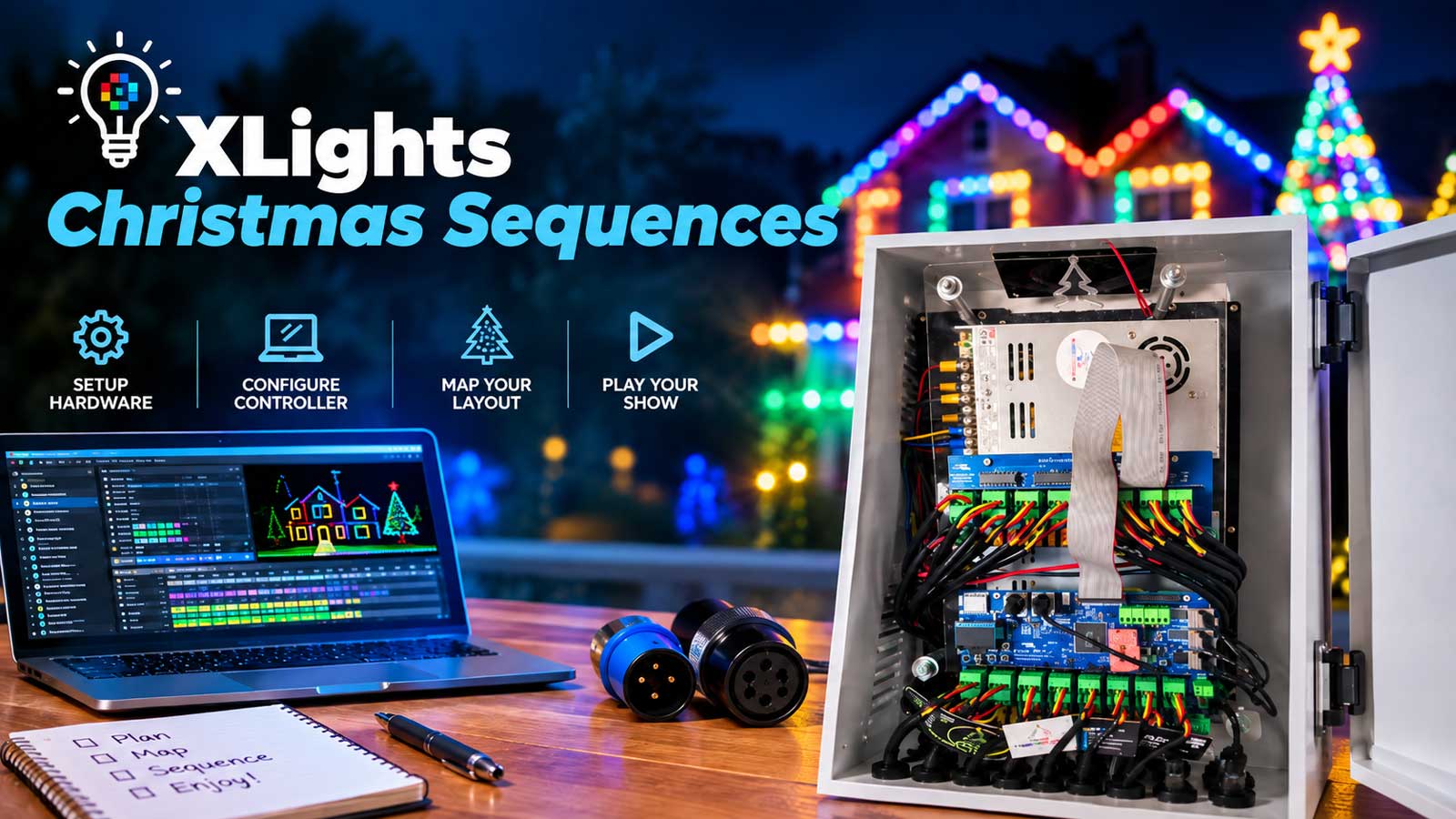
Free xLights Christmas sequences come from community libraries and forums, from free tiers at sequence shops, and from paid shops. Downloading one takes a minute. Running it takes longer, because every sequence was built against somebody else’s yard. The effects point at their models, not yours, so you map it to your display first. Here’s where the sequences are, what each source says you can do with them, and what the mapping work takes.
Where to find Christmas sequences for xLights
Most free xLights Christmas sequences come from four places: the free sequence list built into xLights itself under Tools, community libraries like xLightsSeq and Sequence Armory, forum sharing threads at AusChristmasLighting and DIYChristmas, and the free collections that paid sequence shops publish, such as Magical Light Shows. Paid shops cover the rest.
One correction first, because the xLights website confuses a lot of builders. xlights.org hosts the program, not a sequence library. The free list lives inside the software. Open xLights, go to Tools, and pick Download Sequences/Lyrics. Per the xLights manual, that dialog pulls a list of free sequences off the project’s Google Drive.
xLightsSeq is the largest community library in this hobby, with more than 1,700 sequences and over 100,000 downloads logged across its membership. Sequence Armory is free too, though it puts a Facebook login in front of the browse page. RGB Sequences posts a couple of free samples beside its paid catalog. Between those and the in-app list, an xLights sequences free download is easy to come by. What to do with it afterward is the harder half.
Free, donation, and paid: what each one costs
xLights is free and open source, and the project runs on donations. The sequences are a different market, and free xLights Christmas sequences carry a cost that doesn’t show on the listing.
Magical Light Shows gives away a collection with the line “no strings attached,” and states plainly that no audio is included. xLightsSeq carries free categories beside paid uploads. On the paid side, Pixel Pro Displays lists individual Christmas sequences between $69.99 and $99.99. xTreme Sequences sells a membership instead: $449.99 for 12 redeemable tokens in its Choice Annual Sequence Club, one token per sequence, with a smaller 6-token tier too.
Worth being clear about what those prices buy, because it isn’t the same product. A shop sequence is built once and sold to everyone, so the effects are shaped around a generic display and you do the work of fitting it to yours. A custom sequence is built against your layout from the start. Neither is the right answer for every song. Most builders end up running both.
Your hours are the other half of the cost, and they land on the free downloads hardest. A sequence built for a display twice the size of yours gives you more models to remap, more props you don’t own, and more dark spots to patch. Two of those can eat a weekend.
How to size up an xLights Christmas sequence before you download it
Spend five minutes on the listing before you spend an evening on the file.
- Watch the preview video. Most of what you’re seeing is the seller’s props. Count how many of them you have.
- Read the prop list. A mega tree, four arches, and two singing faces means four or five mapping decisions per song.
- Check the channel count against what your controller and universes already carry.
- Look at the xLights version, which shows in Sequence Settings. A large version gap can mean render differences.
- Check ratings and download counts where the library shows them. xLightsSeq lists both.
- Confirm the file type. An XSQ is the editable sequence. An FSEQ is the rendered playback file, and per the xLights manual the conversion runs one way only. You can make an FSEQ from an XSQ, never the reverse.
What the license actually lets you do
A free download of an xLights Christmas sequence says nothing about what you can do with the file afterward. “Free” is a price. It isn’t a license.
Here’s what each source states, verified on the date this page was last updated. Terms pages change, so read the current one before you lean on a row here.
| Source | Type | Audio included | Stated terms | Access |
|---|---|---|---|---|
| xLights Download Sequences list | Free | Not stated | Not stated per sequence | Inside xLights, under Tools |
| Magical Light Shows free collection | Free | No | “No strings attached,” nothing further stated | Open |
| xLightsSeq | Free and paid | Not stated | Site terms only; uploaders keep their copyright | Free account |
| Sequence Armory | Free | No, they don’t distribute audio files | Uploads screened for copyrighted or commercial material, single strike for infringement | Facebook login |
| xLights Around The World | Free project sequence | No, audio is bought separately | Not stated on the project page | Open |
| Pixel Pro Displays | Paid, $69.99 to $99.99 | No | Personal, non-commercial use. No redistribution, no commercial use | Purchase |
| xTreme Sequences | Paid membership | Embedded media is licensed, not sold | Single home user, one property. No commercial use. No copying effects into your own sequences. No sharing, selling, or trading | Membership |
That conflicts with how the hobby behaves. Forum threads and shared folders pass sequences around freely, while the paid shops above forbid redistribution and, in xTreme’s case, forbid lifting effects out of their sequences into your own. Both are true at once. The sharing happens, and the stated terms say no. We’re reporting what these sources publish, not giving legal advice. A file with no readme and no named author comes with no terms at all.
The music question
Most reputable packages ship with no audio. Magical Light Shows says so outright. Sequence Armory won’t distribute audio files, especially copyrighted ones. xLights Around The World hands over the project sequence and sells the audio separately. You supply the song.
Owning the song and broadcasting it are separate questions, and the answer depends on where you live. Animated Lighting published its read for US residential displays. In its opinion, a song played at a private home display falls under fair use, over speakers or a low-power FM transmitter. It flags donations and sponsorships as a gray area where that position could change. Australia works differently. The AusChristmasLighting wiki says FM broadcast runs under the free APRA Narrowcast Complimentary Licence for a self-funded display with no ads and no money raised, and that ACMA allows transmitters up to 10 microwatts without a licence. A forum post on the same site relays APRA’s position on YouTube second-hand: videos fall under YouTube’s own licence as long as they aren’t monetized and nobody pays to watch.
None of that is legal advice, and a bundled audio file doesn’t carry broadcast rights on its own. If you’re charging admission, taking donations, or monetizing video, check the rules where you live.
xLights and Google Drive: how cloud sequence shares work
Google Drive is where a lot of this hobby stores its xLights Christmas sequences, which is why xLights Google Drive is its own search. There’s a legitimate version and a risky one.
The legitimate one ships with the software. Tools, then Download Sequences/Lyrics, opens the project’s own Drive list of free sequences. The xLights resources page points to a second Google Drive of community-built models, and that one holds models, not sequences.
The risky version is an anonymous folder link posted in a thread. Some hold a builder’s own work. Some hold somebody’s paid purchases reposted without permission, which puts you on the wrong side of the terms in the table above. Old ones rot. A long-running AusChristmasLighting thread points at a folder with the access password posted in public, which tells you how much control the owner still has over it.
Before you open one, check who posted it and whether they say they built the sequences, whether the file names carry vendor branding, and whether a readme with terms came along.
How to map a downloaded sequence to your own display
Mapping is the step people underestimate. The donor sequence names models the way the seller’s layout does, like “MegaTree” or “Front Arches.” Your layout has your names and your pixel counts. Mapping tells xLights which of your models plays each of their models’ effects, and you save that answer so you don’t redo it song after song. If your layout isn’t built yet, start with our xLights sequencing 101 walkthrough and come back.
- Open your show folder in xLights with your models loaded in the Layout tab.
- Create a new musical sequence and add the song file, which the download usually doesn’t include.
- Go to File, then Import, then Import Effects, and pick the donor XSQ or XML file, or the zip if the seller packaged one. Per the xLights manual, the importer also reads Light-O-Rama S4 and S5, SuperStar, Vixen 2 and 3, HLS, LSP, and VSA files.
- Drag each donor model onto one of yours in the Map To column. xLights can attempt this automatically, and the manual says plainly that automatic matches aren’t guaranteed to be correct. Read every row before you accept it.
- Click Save Mapping and save the XMAP file. Load that same XMAP the next time you import a sequence from the same source, and the matching is already done.
- Render All, save, and watch it in the House Preview before you send anything to the yard.
A popular video claims a sequence can be mapped in under five minutes. That holds up once you have a saved XMAP and a layout close to the donor’s. Your first map on a full song runs slower, so plan an evening for it. Mapping has a real learning curve, and it shows most when a big donor display has to land on a smaller one. Plenty of builders hit a wall where the show doesn’t look like the preview, which is why we run xLights sequence mapping as its own service, starting at $40 per sequence.
Once it plays right in xLights, playback is a separate job. Our FPP 101 guide covers the show player and scheduling.
When the sequence expects props you don’t own
This is where first seasons stall. We map borrowed sequences for customers here at Your Pixel Store, and the big props are where the work goes: mega trees with a different strand count than the donor’s, matrices, and singing faces a sequence leans on for a whole chorus.
You have three moves in the mapping window. Map a donor group to your individual models, so a 16-strand mega tree’s effects land on the props you do have. Add an empty group to absorb effects with nowhere to go. Or skip donor models entirely, which leaves that part of the song dark. Some shops also sell high-density add-ons for their own sequences when your props are denser than the original.
The reverse problem is quieter. Props you own that the donor never had stay dark all song, and nothing in the mapping window fixes that. Filling them means sequencing from scratch, which is a different job altogether, and it’s the one we take on with custom xLights sequencing built against your layout.
Halloween xLights sequences: what’s different
The pool is smaller. Light Hunt, which indexes sequences across sources, currently lists roughly 940 Christmas titles against about 160 for Halloween, with a long tail of a couple dozen for the 4th of July and a handful each for Thanksgiving and Hanukkah. Halloween xLights sequences come from the same libraries and shops as the Christmas ones, with fewer titles behind each song you might want. Searching xLights Halloween sequences and the reverse word order both turn up the same shortlist, so don’t assume one phrasing is hiding a better library.
Everything else carries over. The license terms are the same, the audio still isn’t included, and mapping works the same way. The calendar is what bites. Halloween’s build window is short, and October 20 is a bad week to learn how long a first map takes.
When paying someone to map it is the right call
Everything above is the whole job, and plenty of builders run it themselves and enjoy it. The math changes if December is already short, or you’ve got 20 songs and a layout nothing maps cleanly onto. If you’d rather spend your evenings outside hanging pixels than inside dragging model names, hand us the sequences you’ve already downloaded and we’ll fit them to your display: xLights sequence mapping, starting at $40 per sequence.
Frequently asked questions
Start inside xLights: Tools, then Download Sequences/Lyrics, which opens the project’s list of free sequences on Google Drive. From there, check the community libraries at xLightsSeq and Sequence Armory, the sharing threads at AusChristmasLighting and DIYChristmas, and the free collections that paid shops like Magical Light Shows publish.
Not without mapping. An xLights Christmas sequence is built against the seller’s models and prop names, so xLights doesn’t know which of your props plays what. Import the effects, match each of their models to one of yours, save the mapping, then render. Expect an evening for your first one.
It’s the mapping file xLights saves when you match a donor sequence’s models to your own. Per the xLights manual, you click Save Mapping in the Import Effects window to create it. Load that XMAP the next time you import a sequence from the same source and the matching is already done.
Usually not. Magical Light Shows, Sequence Armory, and xLights Around The World all leave the audio out, and you supply the song yourself. A bundled audio file wouldn’t carry broadcast rights anyway. Rules differ by country, so check yours before you broadcast or post video.