Blog
xLights Download: Safe, Simple Steps to Start Your Show


Forget juggling confusing downloads and setup steps for your holiday light show. Getting started with xLights doesn’t have to slow you down or cause headaches. In this guide, you’ll find clear instructions to download xLights safely, pick the right installer for Windows or Mac, and connect it smoothly with Your Pixel Store’s trusted gear like the YPS VIVID 8 controller. Ready to bring your light show to life tonight? Learn more about downloading xLights here.
Safe xLights Download Steps
Getting xLights ready is easier than you think. Follow these steps to confidently start your light show journey.
Official xLights Site Access
To begin, always download xLights from its official site. This ensures you get the most recent and secure version. Avoid third-party sites to prevent malware risks. The official site offers clear instructions, making the process straightforward.
Choosing Your Installer
Selecting the correct installer is crucial for a smooth experience. For Windows users, download the .exe file. Mac users should opt for the .dmg file. Verify your operating system’s compatibility with xLights’ requirements. This step ensures your light show software runs smoothly without hiccups.
Clean xLights Installation
After downloading, follow these steps for a clean installation:
Windows Installation:
Run the .exe file and follow the prompts.
Choose default settings for simplicity.
Mac Installation:
Open the .dmg file and drag xLights into your Applications folder.
Open System Preferences, navigate to Security & Privacy, and allow xLights to run if prompted.
This process minimizes installation issues, allowing you to set up with confidence.
Setting Up Your Light Show
Once xLights is installed, it’s time to connect your light show components and ensure everything works seamlessly.
Connecting to Pixel Controllers
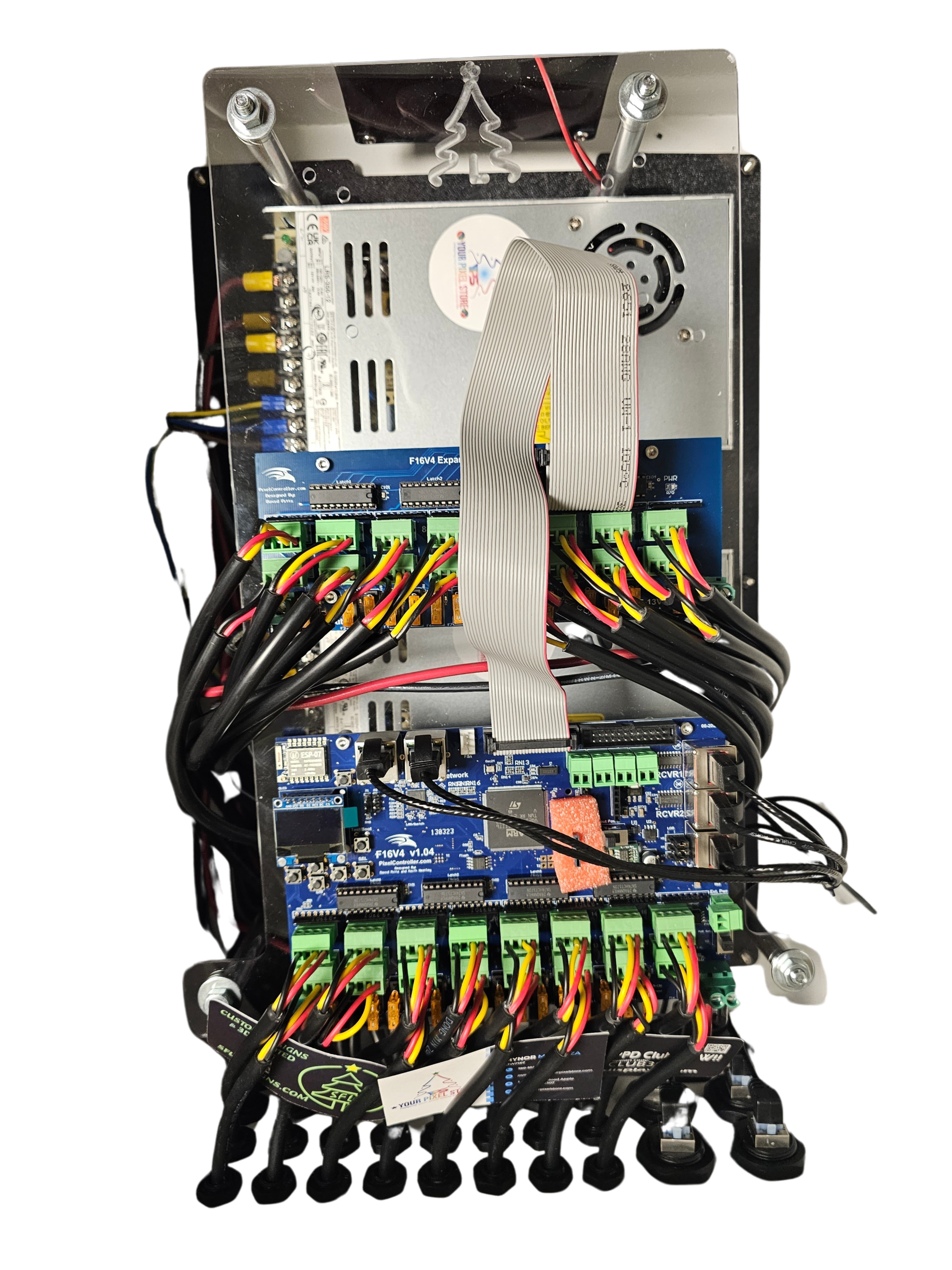
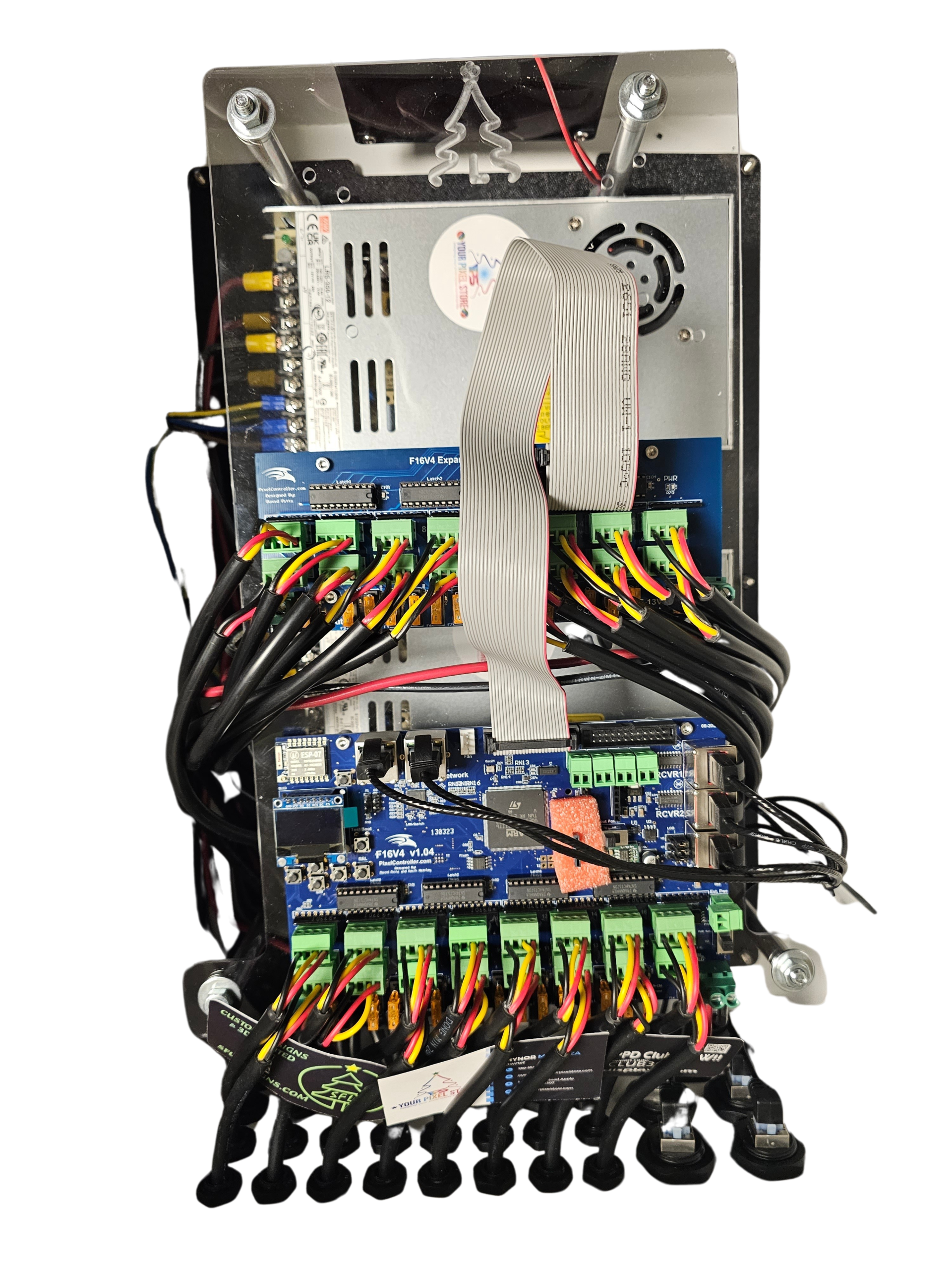
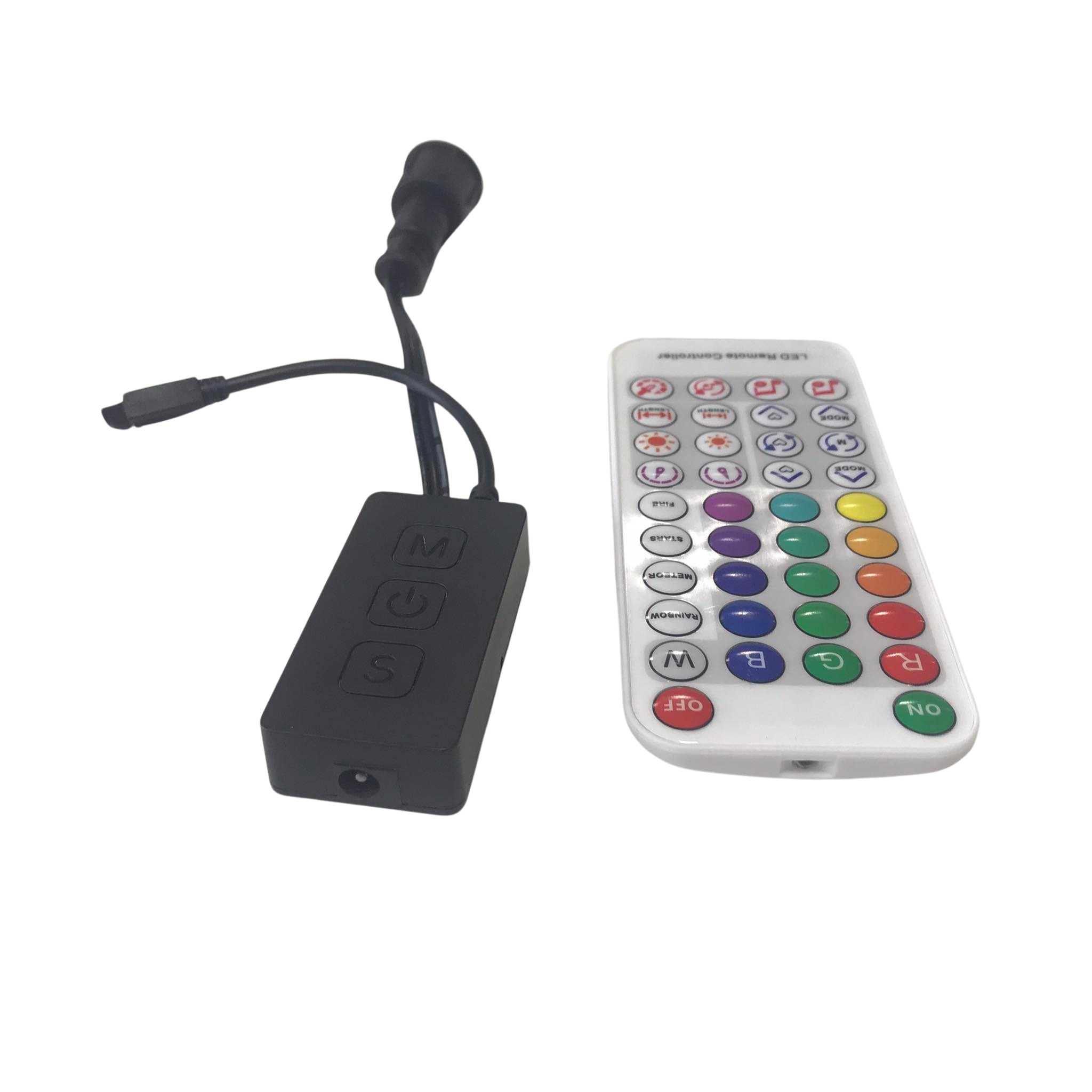
Start by connecting xLights to your pixel controllers. Use the YPS VIVID 8 controller for reliable performance. This controller is known for its easy setup and robust connection. Plug your controller into your computer using a suitable USB cable. Ensure the device is recognized by xLights for a smooth operation.
Starting Your First Sequence
Creating your first sequence is a rewarding step. Open xLights and start a new project. Select your desired lights and arrange them in your preferred pattern. Use the software’s intuitive interface to design a sequence that matches your vision. Play around with different effects to see what works best for your display.
Troubleshooting Common Issues
Encountering issues is common, but solutions are available. If xLights doesn’t recognize your controller, check all connections and ensure your driver is up-to-date. Refer to the xLights FAQ for quick solutions to frequent problems. This resource is invaluable for troubleshooting any hiccups you may face.
Pairing xLights with Hardware

The right hardware enhances your light show’s quality. Selecting compatible components ensures a seamless setup.
Choosing a YPS VIVID 8 Controller
The YPS VIVID 8 controller is an excellent choice for both beginners and professionals. It supports a wide range of setups and provides reliable performance. This controller simplifies the connection between your computer and lights, ensuring your show runs flawlessly.
Reliable LED Pixels and Accessories
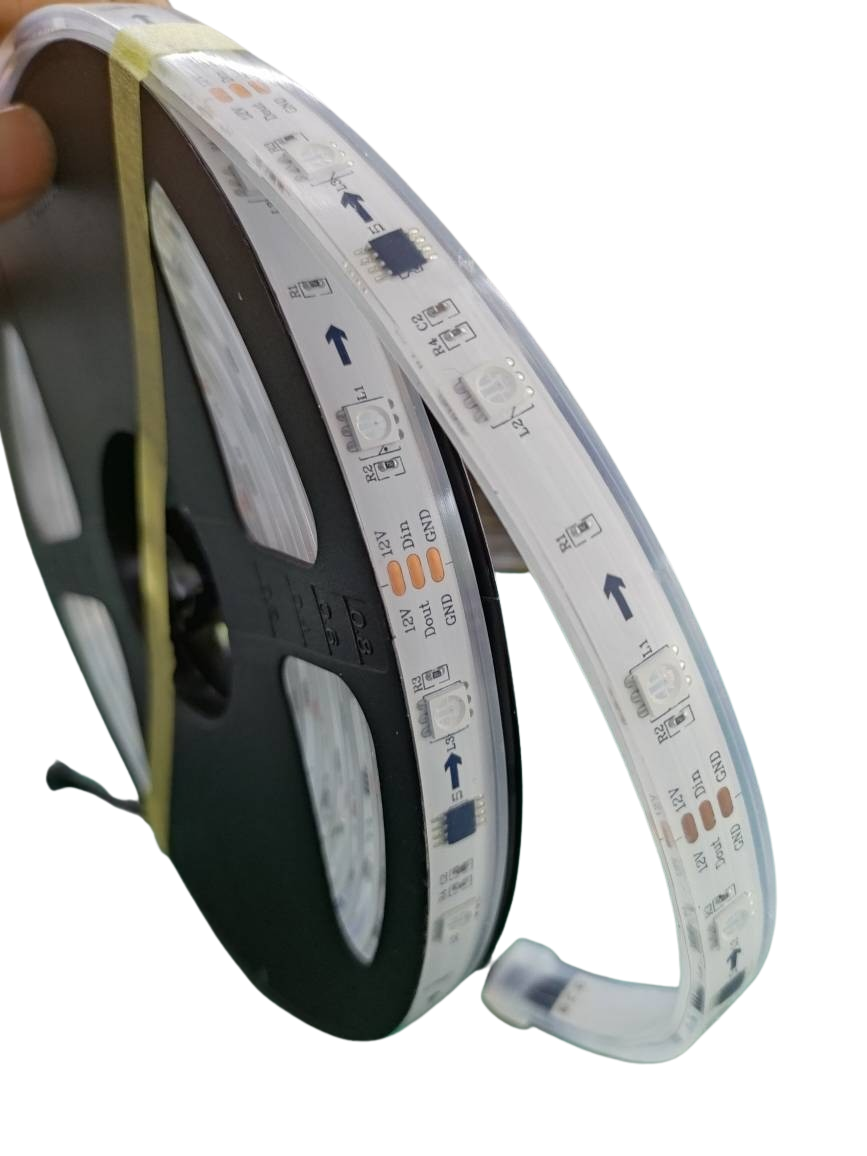
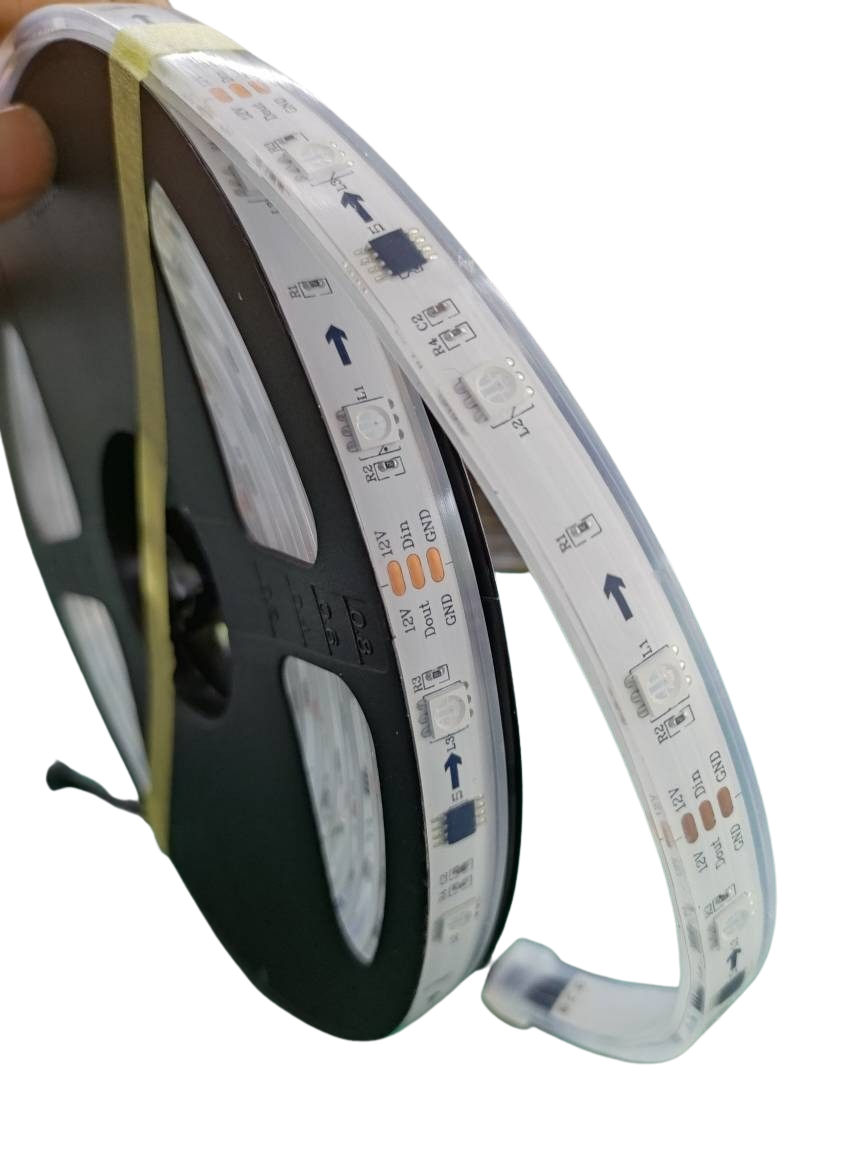
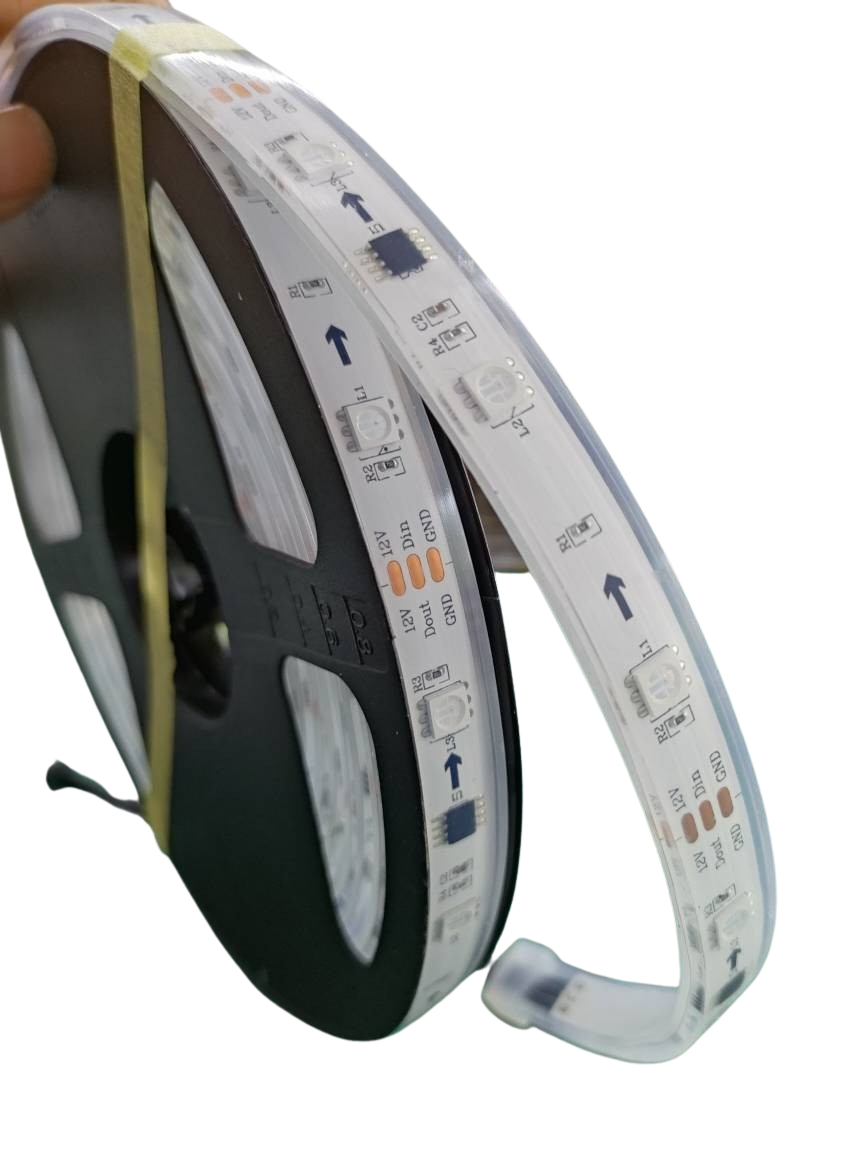
Choosing the right LED pixels and accessories is vital. Look for products that are known for their durability and brightness. Your Pixel Store offers a variety of options to suit different needs. Consider the environment where your lights will be used to pick the most suitable products.
Ensuring FPP Compatibility
To maximize your setup’s potential, ensure compatibility with Falcon Player (FPP). FPP allows for advanced show management and scheduling. Verify that your hardware and xLights version support FPP integration. This compatibility enhances your ability to control complex light shows effortlessly.
With these steps, you’re ready to create stunning light displays that captivate your audience. Enjoy the process, and let your creativity shine! For more detailed guidance, check out xLights Sequences Made Simple: From Download to Showtime with Your Pixel Store.